> ## Documentation Index
> Fetch the complete documentation index at: https://wiki.another-horizon.eu/llms.txt
> Use this file to discover all available pages before exploring further.

# 全局设置

> 在 docs.json 中配置全站设置。

`docs.json` 文件可将一组 Markdown 文件转换为可浏览、可自定义的文档站点。这个必填的配置文件控制样式、导航、integrations 等内容。可以把它看作你的文档蓝图。

`docs.json` 中的设置会全局应用于所有页面。

<div id="setting-up-your-docsjson">
  ## 配置你的 `docs.json`
</div>

开始时，你只需指定 `theme`、`name`、`colors.primary` 和 `navigation`。其他字段可选，可根据文档需求的增长逐步添加。

为获得最佳编辑体验，请在 `docs.json` 文件的顶部加入 schema 引用。这将在大多数代码编辑器中启用自动补全、校验和实用的悬浮提示：

```json theme={null}
{
  "$schema": "https://mintlify.com/docs.json",
  "theme": "mint",
  "name": "您的文档",
  "colors": {
    "primary": "#ff0000"
  },
  "navigation": {
    // 您的导航结构
  }
  // 配置的其余部分
}
```

<div id="reference">
  ## 参考
</div>

本节提供 `docs.json` 文件的完整参考资料。

<div id="customization">
  ### 自定义
</div>

<ResponseField name="theme" required>
  你的网站布局主题。

  以下之一：`mint`、`maple`、`palm`、`willow`、`linden`、`almond`、`aspen`。

  查看[主题](/zh/customize/themes)以了解更多信息。
</ResponseField>

<ResponseField name="name" type="string" required>
  你的项目、组织或产品名称。
</ResponseField>

<ResponseField name="colors" type="object" required>
  文档中使用的配色。不同主题对颜色的应用方式有所不同。如果你只提供主色，它将用于所有颜色元素。

  <Expandable title="Colors">
    <ResponseField name="primary" type="string matching ^#([a-fA-F0-9]{6}|[a-fA-F0-9]{3})$" required>
      文档的主色。通常在浅色模式下用于强调，具体因主题而异。

      必须是以 `#` 开头的十六进制代码。
    </ResponseField>

    <ResponseField name="light" type="string matching ^#([a-fA-F0-9]{6}|[a-fA-F0-9]{3})$">
      在深色模式下用于强调的颜色。

      必须是以 `#` 开头的十六进制代码。
    </ResponseField>

    <ResponseField name="dark" type="string matching ^#([a-fA-F0-9]{6}|[a-fA-F0-9]{3})$">
      在浅色和深色模式下用于按钮和悬停状态的颜色，具体因主题而异。

      必须是以 `#` 开头的十六进制代码。
    </ResponseField>
  </Expandable>
</ResponseField>

<ResponseField name="description" type="string">
  你的网站说明，用于 SEO（搜索引擎优化）和 AI 索引编入。
</ResponseField>

<ResponseField name="logo" type="string or object">
  为浅色和深色模式设置 logo。

  <Expandable title="Logo">
    <ResponseField name="light" type="string" required>
      指向浅色模式下 logo 文件的路径。需包含文件扩展名。示例：`/logo.png`
    </ResponseField>

    <ResponseField name="dark" type="string" required>
      指向深色模式下 logo 文件的路径。需包含文件扩展名。示例：`/logo-dark.png`
    </ResponseField>

    <ResponseField name="href" type="string (uri)">
      点击 logo 时跳转的 URL。若未提供，logo 将链接到你的首页。示例：`https://mintlify.com`
    </ResponseField>
  </Expandable>
</ResponseField>

<ResponseField name="favicon" type="string or object">
  指向 favicon 文件的路径（包含文件扩展名）。会自动调整为合适的 favicon 尺寸。可以是单个文件，或分别为浅色和深色模式提供文件。示例：`/favicon.png`

  <Expandable title="Favicon">
    <ResponseField name="light" type="string" required>
      指向浅色模式下 favicon 文件的路径。需包含文件扩展名。示例：`/favicon.png`
    </ResponseField>

    <ResponseField name="dark" type="string" required>
      指向深色模式下 favicon 文件的路径。需包含文件扩展名。示例：`/favicon-dark.png`
    </ResponseField>
  </Expandable>
</ResponseField>

<ResponseField name="thumbnails" type="object">
  用于社交媒体和页面预览的缩略图自定义。

  <Expandable title="Thumbnails">
    <ResponseField name="appearance" type="&#x22;light&#x22; | &#x22;dark&#x22;">
      缩略图的视觉主题。若未指定，缩略图将使用你在 `colors` 字段中定义的网站配色方案。
    </ResponseField>

    <ResponseField name="background" type="string">
      缩略图的背景图像。可以是相对路径或绝对 URL。
    </ResponseField>

    <ResponseField name="fonts" type="object">
      缩略图的字体配置。仅支持 Google Fonts 的字体系列名称。

      <Expandable title="Fonts">
        <ResponseField name="family" type="string" required>
          字体系列名称，例如 “Open Sans” 或 “Playfair Display”。支持 [Google Fonts](https://fonts.google.com) 的字体系列名称。
        </ResponseField>
      </Expandable>
    </ResponseField>
  </Expandable>
</ResponseField>

<ResponseField name="styling" type="object">
  视觉样式配置。

  <Expandable title="Styling">
    <ResponseField name="eyebrows" type="&#x22;section&#x22; | &#x22;breadcrumbs&#x22;">
      页面 eyebrow 区域的样式。选择 `section` 显示所属章节名称，选择 `breadcrumbs` 显示完整导航路径。默认为 `section`。
    </ResponseField>

    <ResponseField name="latex" type="boolean">
      控制是否包含 LaTeX 样式表，并覆盖自动检测。默认情况下，Mintlify 会自动检测内容中的 LaTeX 使用情况并加载所需的样式表。

      * 设置为 `true`：当自动检测未能识别你的数学表达式时，强制加载 LaTeX 样式表。
      * 设置为 `false`：如果你不使用数学表达式，但内容会触发误检，可阻止加载 LaTeX 样式表，以提升性能。
    </ResponseField>

    <ResponseField name="codeblocks" type="&#x22;system&#x22; | &#x22;dark&#x22; | string | object">
      代码块主题配置。默认为 `"system"`。

      **简单配置：**

      * `"system"`：匹配当前站点模式（light 或 dark）
      * `"dark"`：始终使用 dark 模式

      **自定义主题配置：**

      * 使用字符串为所有代码块指定单个 [Shiki 主题](https://shiki.style/themes)
      * 使用对象为 light 和 dark 模式分别指定不同的 [Shiki 主题](https://shiki.style/themes)

      <ResponseField name="theme" type="string">
        一个同时用于 light 和 dark 两种模式的 Shiki 主题名称。

        ```json theme={null}
        "styling": {
          "codeblocks": {
            "theme": "dracula"
          }
        }
        ```
      </ResponseField>

      <ResponseField name="theme" type="object">
        为 light 和 dark 模式分别指定不同的主题。

        <Expandable title="theme">
          <ResponseField name="light" type="string" required>
            light 模式下使用的 Shiki 主题名称。
          </ResponseField>

          <ResponseField name="dark" type="string" required>
            dark 模式下使用的 Shiki 主题名称。
          </ResponseField>

          ```json theme={null}
          "styling": {
            "codeblocks": {
              "theme": {
                "light": "github-light",
                "dark": "github-dark"
              }
            }
          }
          ```
        </Expandable>
      </ResponseField>

      <ResponseField name="languages" type="object">
        代码块的自定义语言配置。

        <Expandable title="languages">
          <ResponseField name="custom" type="array of string">
            指向描述自定义 Shiki 语言的 JSON 文件的路径。使用此配置为 Shiki 默认不包含的语言添加语法高亮。

            JSON 文件必须遵循 Shiki 使用的 [TextMate 语法格式](https://macromates.com/manual/en/language_grammars)。

            ```json theme={null}
            "styling": {
              "codeblocks": {
                "languages": {
                  "custom": ["/languages/my-custom-language.json"]
                }
              }
            }
            ```
          </ResponseField>
        </Expandable>
      </ResponseField>
    </ResponseField>
  </Expandable>
</ResponseField>

<ResponseField name="icons" type="object">
  图标库设置。

  <Expandable title="Icons">
    <ResponseField name="library" type="&#x22;fontawesome&#x22; | &#x22;lucide&#x22;" required>
      在整个文档中使用的图标库。默认为 `fontawesome`。

      你在一个项目中只能使用一个图标库。文档中的所有图标名称都必须来自同一个图标库。

      <Note>
        无论库设置为何，你都可以为任意单个图标指定指向外部托管图标的 URL、项目中图标文件的路径，或 JSX 兼容的 SVG 代码。
      </Note>
    </ResponseField>
  </Expandable>
</ResponseField>

<ResponseField name="fonts" type="object">
  为文档设置自定义字体。默认字体随主题不同而变化。

  <Expandable title="Fonts">
    <ResponseField name="family" type="string" required>
      字体系列，例如 “Open Sans”。支持 [Google Fonts](https://fonts.google.com) 的 family 名称。
    </ResponseField>

    <ResponseField name="weight" type="number">
      字重，例如 400 或 700。可变字体支持精确字重，如 550。
    </ResponseField>

    <ResponseField name="source" type="string (uri)">
      取以下之一：

      * 托管字体的 URL，例如 [https://mintlify-assets.b-cdn.net/fonts/Hubot-Sans.woff2。](https://mintlify-assets.b-cdn.net/fonts/Hubot-Sans.woff2。)
      * 本地字体文件的路径，例如 `/fonts/Hubot-Sans.woff2`。

      当你指定 Google 字体的 `family` 名称时，[Google Fonts](https://fonts.google.com) 会自动加载，因此无需提供 source URL。
    </ResponseField>

    <ResponseField name="format" type="&#x22;woff&#x22; | &#x22;woff2&#x22;">
      字体文件格式。使用 `source` 字段时必填。
    </ResponseField>

    <ResponseField name="heading" type="object">
      专用于标题的字体设置覆盖。

      <Expandable title="Heading">
        <ResponseField name="family" type="string" required>
          字体系列，例如 “Open Sans”、“Playfair Display”。支持 [Google Fonts](https://fonts.google.com) 的 family 名称。
        </ResponseField>

        <ResponseField name="weight" type="number">
          字重，例如 400、700。可变字体支持精确字重，如 550。
        </ResponseField>

        <ResponseField name="source" type="string (uri)">
          取以下之一：

          * 托管字体的 URL，例如 [https://mintlify-assets.b-cdn.net/fonts/Hubot-Sans.woff2。](https://mintlify-assets.b-cdn.net/fonts/Hubot-Sans.woff2。)
          * 本地字体文件的路径，例如 `/fonts/Hubot-Sans.woff2`。

          当你指定 Google 字体的 `family` 名称时，[Google Fonts](https://fonts.google.com) 会自动加载，因此无需提供 source URL。
        </ResponseField>

        <ResponseField name="format" type="&#x22;woff&#x22; | &#x22;woff2&#x22;">
          字体文件格式。使用 `source` 字段时必填。
        </ResponseField>
      </Expandable>
    </ResponseField>

    <ResponseField name="body" type="object">
      专用于正文的字体设置覆盖。

      <Expandable title="Body">
        <ResponseField name="family" type="string" required>
          字体系列，例如 “Open Sans”、“Playfair Display”。支持 [Google Fonts](https://fonts.google.com) 的 family 名称。
        </ResponseField>

        <ResponseField name="weight" type="number">
          字重，例如 400、700。可变字体支持精确字重，如 550。
        </ResponseField>

        <ResponseField name="source" type="string (uri)">
          取以下之一：

          * 托管字体的 URL，例如 [https://mintlify-assets.b-cdn.net/fonts/Hubot-Sans.woff2。](https://mintlify-assets.b-cdn.net/fonts/Hubot-Sans.woff2。)
          * 本地字体文件的路径，例如 `/fonts/Hubot-Sans.woff2`。

          当你指定 Google 字体的 `family` 名称时，[Google Fonts](https://fonts.google.com) 会自动加载，因此无需提供 source URL。
        </ResponseField>

        <ResponseField name="format" type="&#x22;woff&#x22; | &#x22;woff2&#x22;">
          字体文件格式。使用 `source` 字段时必填。
        </ResponseField>
      </Expandable>
    </ResponseField>
  </Expandable>
</ResponseField>

<ResponseField name="appearance" type="object">
  明/暗模式切换设置。

  <Expandable title="Appearance">
    <ResponseField name="default" type="&#x22;system&#x22; | &#x22;light&#x22; | &#x22;dark&#x22;">
      默认主题模式。选择 `system` 以匹配用户操作系统设置，或选择 `light`/`dark` 强制使用特定模式。默认为 `system`。
    </ResponseField>

    <ResponseField name="strict" type="boolean">
      是否隐藏明/暗模式切换。默认为 `false`。
    </ResponseField>
  </Expandable>
</ResponseField>

<ResponseField name="background" type="object">
  背景颜色与装饰设置。

  <Expandable title="Background">
    <ResponseField name="image" type="string or object">
      站点的背景图像。可以是单个文件，或分别为 light 与 dark 模式提供独立文件。

      <Expandable title="Image">
        <ResponseField name="light" type="string" required>
          light 模式的背景图像路径。需包含文件扩展名。示例：`/background.png`。
        </ResponseField>

        <ResponseField name="dark" type="string" required>
          dark 模式的背景图像路径。需包含文件扩展名。示例：`/background-dark.png`。
        </ResponseField>
      </Expandable>
    </ResponseField>

    <ResponseField name="decoration" type="&#x22;gradient&#x22; | &#x22;grid&#x22; | &#x22;windows&#x22;">
      主题的背景装饰效果。
    </ResponseField>

    <ResponseField name="color" type="object">
      为 light 与 dark 模式自定义背景颜色。

      <Expandable title="Color">
        <ResponseField name="light" type="string matching ^#([a-fA-F0-9]{6}|[a-fA-F0-9]{3})$">
          light 模式的背景颜色。

          必须是以 `#` 开头的十六进制色值。
        </ResponseField>

        <ResponseField name="dark" type="string matching ^#([a-fA-F0-9]{6}|[a-fA-F0-9]{3})$">
          dark 模式的背景颜色。

          必须是以 `#` 开头的十六进制色值。
        </ResponseField>
      </Expandable>
    </ResponseField>
  </Expandable>
</ResponseField>

<div id="structure">
  ### 结构
</div>

<ResponseField name="navbar" type="object">
  导航栏中的外部链接项目。

  <Expandable title="Navbar">
    <ResponseField name="links" type="array of object">
      要在导航栏中显示的链接。

      <Expandable title="Links">
        <ResponseField name="label" type="string" required>
          链接文本。
        </ResponseField>

        <ResponseField name="href" type="string (uri)" required>
          链接目标。必须为有效的外部 URL。
        </ResponseField>

        <ResponseField name="icon" type="string">
          要显示的 icon。

          选项：

          * [Font Awesome icon](https://fontawesome.com/icons) 名称
          * [Lucide icon](https://lucide.dev/icons) 名称
          * 用花括号包裹的 JSX 兼容 SVG 代码
          * 指向外部托管 icon 的 URL
          * 项目中 icon 文件的路径

          针对自定义 SVG icon：

          1. 使用 [SVGR 转换器](https://react-svgr.com/playground/)将你的 SVG 转换为 JSX。
          2. 将 SVG 代码粘贴到 SVG 输入框。
          3. 从 JSX 输出框中复制完整的 `<svg>...</svg>` 元素。
          4. 用花括号包裹 JSX 兼容的 SVG 代码：`icon={<svg ...> ... </svg>}`。
          5. 按需调整 `height` 和 `width`。
        </ResponseField>

        <ResponseField name="iconType" type="string">
          [Font Awesome](https://fontawesome.com/icons) icon 的样式。仅在使用 Font Awesome icon 时生效。

          选项：`regular`、`solid`、`light`、`thin`、`sharp-solid`、`duotone`、`brands`。
        </ResponseField>
      </Expandable>
    </ResponseField>

    <ResponseField name="primary" type="object">
      导航栏中的主按钮。

      <Expandable title="Primary">
        <ResponseField name="type" type="&#x22;button&#x22; | &#x22;github&#x22;" required>
          按钮样式。选择 `button` 以使用带有文本的标准按钮，选择 `github` 以使用指向 GitHub 存储库并带 icon 的链接。
        </ResponseField>

        <ResponseField name="label" type="string" required>
          按钮文本。仅当 `type` 为 `button` 时生效。
        </ResponseField>

        <ResponseField name="href" type="string (uri)" required>
          按钮目标。必须为外部 URL。若 `type` 为 `github`，则必须为 GitHub 存储库的 URL。
        </ResponseField>
      </Expandable>
    </ResponseField>
  </Expandable>
</ResponseField>

<ResponseField name="导航" type="object" required>
  内容的导航结构。

  <Expandable title="导航">
    <ResponseField name="全局" type="object">
      在所有页面和部分中显示的全局导航元素。

      <Expandable title="全局">
        <ResponseField name="语言" type="array of object">
          用于多语言站点的语言切换器配置。

          <Expandable title="Languages">
            <ResponseField name="language" type="&#x22;en&#x22; | &#x22;cn&#x22; | &#x22;zh&#x22; | &#x22;zh-Hans&#x22; | &#x22;zh-Hant&#x22; | &#x22;es&#x22; | &#x22;fr&#x22; | &#x22;ja&#x22; | &#x22;jp&#x22; | &#x22;pt&#x22; | &#x22;pt-BR&#x22; | &#x22;de&#x22; | &#x22;ko&#x22; | &#x22;it&#x22; | &#x22;ru&#x22; | &#x22;id&#x22; | &#x22;ar&#x22; | &#x22;tr&#x22;" required>
              符合 ISO 639-1 格式的语言代码。
            </ResponseField>

            <ResponseField name="default" type="boolean">
              是否为默认语言。
            </ResponseField>

            <ResponseField name="hidden" type="boolean">
              是否默认隐藏此语言选项。
            </ResponseField>

            <ResponseField name="href" type="string (uri)" required>
              指向此语言文档版本的有效路径或外部链接。
            </ResponseField>
          </Expandable>
        </ResponseField>

        <ResponseField name="版本" type="array of object">
          多版本站点的版本切换配置。

          <Expandable title="Versions">
            <ResponseField name="version" type="string" required>
              此版本的显示名称。

              最小长度：1
            </ResponseField>

            <ResponseField name="default" type="boolean">
              是否为默认版本。
            </ResponseField>

            <ResponseField name="hidden" type="boolean">
              是否默认隐藏此版本选项。
            </ResponseField>

            <ResponseField name="href" type="string (uri)" required>
              指向该文档版本的 URL 或路径。
            </ResponseField>
          </Expandable>
        </ResponseField>

        <ResponseField name="Tabs" type="array of object">
          用于组织主要部分的顶级导航选项卡。

          <Expandable title="Tabs">
            <ResponseField name="tab" type="string" required>
              标签页的显示名称。

              最小长度：1
            </ResponseField>

            <ResponseField name="icon" type="string">
              要显示的 icon。

              选项：

              * [Font Awesome icon](https://fontawesome.com/icons) 名称
              * [Lucide icon](https://lucide.dev/icons) 名称
              * 用花括号包裹的 JSX 兼容 SVG 代码
              * 指向外部托管 icon 的 URL
              * 项目中 icon 文件的路径

              针对自定义 SVG icon：

              1. 使用 [SVGR 转换器](https://react-svgr.com/playground/)将你的 SVG 转换为 JSX。
              2. 将 SVG 代码粘贴到 SVG 输入框。
              3. 从 JSX 输出框中复制完整的 `<svg>...</svg>` 元素。
              4. 用花括号包裹 JSX 兼容的 SVG 代码：`icon={<svg ...> ... </svg>}`。
              5. 按需调整 `height` 和 `width`。
            </ResponseField>

            <ResponseField name="iconType" type="string">
              [Font Awesome](https://fontawesome.com/icons) icon 的样式。仅在使用 Font Awesome icon 时生效。

              选项：`regular`、`solid`、`light`、`thin`、`sharp-solid`、`duotone`、`brands`。
            </ResponseField>

            <ResponseField name="hidden" type="boolean">
              是否默认隐藏此标签页。
            </ResponseField>

            <ResponseField name="href" type="string (uri)" required>
              该标签页目标的 URL 或路径。
            </ResponseField>
          </Expandable>
        </ResponseField>

        <ResponseField name="锚点" type="array of object">
          在侧边栏导航中显著显示的锚点链接。

          <Expandable title="Anchors">
            <ResponseField name="anchor" type="string" required>
              锚点的显示名称。

              最小长度：1
            </ResponseField>

            <ResponseField name="icon" type="string">
              要显示的 icon。

              选项：

              * [Font Awesome icon](https://fontawesome.com/icons) 名称
              * [Lucide icon](https://lucide.dev/icons) 名称
              * 用花括号包裹的 JSX 兼容 SVG 代码
              * 指向外部托管 icon 的 URL
              * 项目中 icon 文件的路径

              针对自定义 SVG icon：

              1. 使用 [SVGR 转换器](https://react-svgr.com/playground/)将你的 SVG 转换为 JSX。
              2. 将 SVG 代码粘贴到 SVG 输入框。
              3. 从 JSX 输出框中复制完整的 `<svg>...</svg>` 元素。
              4. 用花括号包裹 JSX 兼容的 SVG 代码：`icon={<svg ...> ... </svg>}`。
              5. 按需调整 `height` 和 `width`。
            </ResponseField>

            <ResponseField name="iconType" type="string">
              [Font Awesome](https://fontawesome.com/icons) icon 的样式。仅在使用 Font Awesome icon 时生效。

              选项：`regular`、`solid`、`light`、`thin`、`sharp-solid`、`duotone`、`brands`。
            </ResponseField>

            <ResponseField name="color" type="object">
              锚点的自定义颜色。

              <Expandable title="Color">
                <ResponseField name="light" type="string matching ^#([a-fA-F0-9]{6}|[a-fA-F0-9]{3})$">
                  适用于 light 模式的锚点颜色。

                  必须是以 `#` 开头的十六进制代码。
                </ResponseField>

                <ResponseField name="dark" type="string matching ^#([a-fA-F0-9]{6}|[a-fA-F0-9]{3})$">
                  适用于 system 模式的锚点颜色。

                  必须是以 `#` 开头的十六进制代码。
                </ResponseField>
              </Expandable>
            </ResponseField>

            <ResponseField name="hidden" type="boolean">
              是否默认隐藏此锚点。
            </ResponseField>

            <ResponseField name="href" type="string (uri)" required>
              锚点目标的 URL 或路径。
            </ResponseField>
          </Expandable>
        </ResponseField>

        <ResponseField name="下拉菜单" type="array of object">
          用于组织相关内容的下拉菜单。

          <Expandable title="下拉菜单">
            <ResponseField name="dropdown" type="string" required>
              下拉菜单的显示名称。

              最小长度：1
            </ResponseField>

            <ResponseField name="icon" type="string">
              要显示的 icon。

              选项：

              * [Font Awesome icon](https://fontawesome.com/icons) 名称
              * [Lucide icon](https://lucide.dev/icons) 名称
              * 用花括号包裹的 JSX 兼容 SVG 代码
              * 指向外部托管 icon 的 URL
              * 项目中 icon 文件的路径

              针对自定义 SVG icon：

              1. 使用 [SVGR 转换器](https://react-svgr.com/playground/)将你的 SVG 转换为 JSX。
              2. 将 SVG 代码粘贴到 SVG 输入框。
              3. 从 JSX 输出框中复制完整的 `<svg>...</svg>` 元素。
              4. 用花括号包裹 JSX 兼容的 SVG 代码：`icon={<svg ...> ... </svg>}`。
              5. 按需调整 `height` 和 `width`。
            </ResponseField>

            <ResponseField name="iconType" type="string">
              [Font Awesome](https://fontawesome.com/icons) icon 的样式。仅在使用 Font Awesome icon 时生效。

              选项：`regular`、`solid`、`light`、`thin`、`sharp-solid`、`duotone`、`brands`。
            </ResponseField>

            <ResponseField name="hidden" type="boolean">
              是否默认隐藏此下拉菜单。
            </ResponseField>

            <ResponseField name="href" type="string (uri)" required>
              下拉菜单目标的 URL 或路径。
            </ResponseField>
          </Expandable>
        </ResponseField>

        <ResponseField name="产品" type="array of object">
          用于将内容分组为不同部分的产品。

          <Expandable title="Products">
            <ResponseField name="product" type="string" required>
              产品的显示名称。
            </ResponseField>

            <ResponseField name="description" type="string">
              产品的描述。
            </ResponseField>

            <ResponseField name="icon" type="string">
              要显示的 icon。

              选项：

              * [Font Awesome icon](https://fontawesome.com/icons) 名称
              * [Lucide icon](https://lucide.dev/icons) 名称
              * 用花括号包裹的 JSX 兼容 SVG 代码
              * 指向外部托管 icon 的 URL
              * 项目中 icon 文件的路径

              针对自定义 SVG icon：

              1. 使用 [SVGR 转换器](https://react-svgr.com/playground/)将你的 SVG 转换为 JSX。
              2. 将 SVG 代码粘贴到 SVG 输入框。
              3. 从 JSX 输出框中复制完整的 `<svg>...</svg>` 元素。
              4. 用花括号包裹 JSX 兼容的 SVG 代码：`icon={<svg ...> ... </svg>}`。
              5. 按需调整 `height` 和 `width`。
            </ResponseField>

            <ResponseField name="iconType" type="string">
              [Font Awesome](https://fontawesome.com/icons) icon 的样式。仅在使用 Font Awesome icon 时生效。

              选项：`regular`、`solid`、`light`、`thin`、`sharp-solid`、`duotone`、`brands`。
            </ResponseField>
          </Expandable>
        </ResponseField>
      </Expandable>
    </ResponseField>

    <ResponseField name="语言" type="array of object">
      用于[multi-language](/zh/organize/navigation#languages)站点的语言切换器。
    </ResponseField>

    <ResponseField name="版本" type="array of object">
      为拥有多个[版本](/zh/organize/navigation#versions)的网站提供版本切换器。
    </ResponseField>

    <ResponseField name="Tabs" type="array of object">
      顶级导航的 [Tabs](/zh/organize/navigation#tabs)。
    </ResponseField>

    <ResponseField name="锚点" type="array of object">
      侧边栏中的[锚点](/zh/organize/navigation#anchors)。
    </ResponseField>

    <ResponseField name="下拉菜单" type="array of object">
      用于对相关内容进行分组的[下拉菜单](/zh/organize/navigation#dropdowns)。
    </ResponseField>

    <ResponseField name="产品" type="array of object">
      适用于包含多个[产品](/zh/organize/navigation#products)的站点的产品切换器。
    </ResponseField>

    <ResponseField name="groups" type="array of object">
      用于将内容组织成各个部分的[groups](/zh/organize/navigation#groups)。
    </ResponseField>

    <ResponseField name="页面" type="array of string or object">
      构成你的文档的独立[页面](/zh/organize/navigation#pages)。
    </ResponseField>
  </Expandable>
</ResponseField>

<ResponseField name="interaction" type="object">
  导航元素的用户交互设置。

  <Expandable title="Interaction">
    <ResponseField name="drilldown" type="boolean">
      控制选择导航分组时的自动导航行为。设置为 `true` 时，在展开导航分组时会强制跳转到该分组中的第一个页面。设置为 `false` 时将不会跳转，仅展开或折叠该分组。不设置时将使用主题的默认行为。
    </ResponseField>
  </Expandable>
</ResponseField>

<ResponseField name="metadata" type="object">
  文档页面的元数据配置。

  <Expandable title="Metadata">
    <ResponseField name="timestamp" type="boolean">
      在所有页面上启用最后修改日期显示。启用后，所有页面都会显示内容的最后修改日期。默认为 `false`。
    </ResponseField>
  </Expandable>
</ResponseField>

<ResponseField name="footer" type="object">
  页脚内容与社交媒体链接。

  <Expandable title="Footer">
    <ResponseField name="socials" type="object">
      要在页脚中显示的社交媒体账号信息。每个键是平台名称，每个值是你的个人主页 URL。例如：

      ```json theme={null}
      {
        "x": "https://x.com/mintlify"
      }
      ```

      可用的属性名：`x`, `website`, `facebook`, `youtube`, `discord`, `slack`, `github`, `linkedin`, `instagram`, `hacker-news`, `medium`, `telegram`, `twitter`, `x-twitter`, `earth-americas`, `bluesky`, `threads`, `reddit`, `podcast`
    </ResponseField>

    <ResponseField name="links" type="array of object">
      要在页脚中显示的链接。

      <Expandable title="Links">
        <ResponseField name="header" type="string">
          列的标题。

          最小长度：1
        </ResponseField>

        <ResponseField name="items" type="array of object" required>
          要在该列中显示的链接。

          <Expandable title="Items">
            <ResponseField name="label" type="string" required>
              链接文本。

              最小长度：1
            </ResponseField>

            <ResponseField name="href" type="string (uri)" required>
              链接目标 URL。
            </ResponseField>
          </Expandable>
        </ResponseField>
      </Expandable>
    </ResponseField>
  </Expandable>
</ResponseField>

<ResponseField name="banner" type="object">
  显示在页面顶部的全站横幅。

  <Expandable title="Banner">
    <ResponseField name="content" type="string" required>
      横幅中显示的文本内容。支持基础 MDX 格式，包括链接、加粗和斜体文本。不支持自定义组件。例如：

      ```json theme={null}
      {
        "content": "🚀 Banner is live! [Learn more](mintlify.com)"
      }
      ```
    </ResponseField>

    <ResponseField name="dismissible" type="boolean">
      是否在横幅右侧显示关闭按钮。默认为 `false`。
    </ResponseField>
  </Expandable>
</ResponseField>

<ResponseField name="redirects" type="array of object">
  针对已移动、重命名或删除页面的重定向规则。

  <Expandable title="Redirects">
    <ResponseField name="source" type="string" required>
      要进行重定向的源路径。例如：`/old-page`
    </ResponseField>

    <ResponseField name="destination" type="string" required>
      要重定向到的目标路径。例如：`/new-page`
    </ResponseField>

    <ResponseField name="permanent" type="boolean">
      是否使用永久重定向（301）。默认为 `true`。
    </ResponseField>
  </Expandable>
</ResponseField>

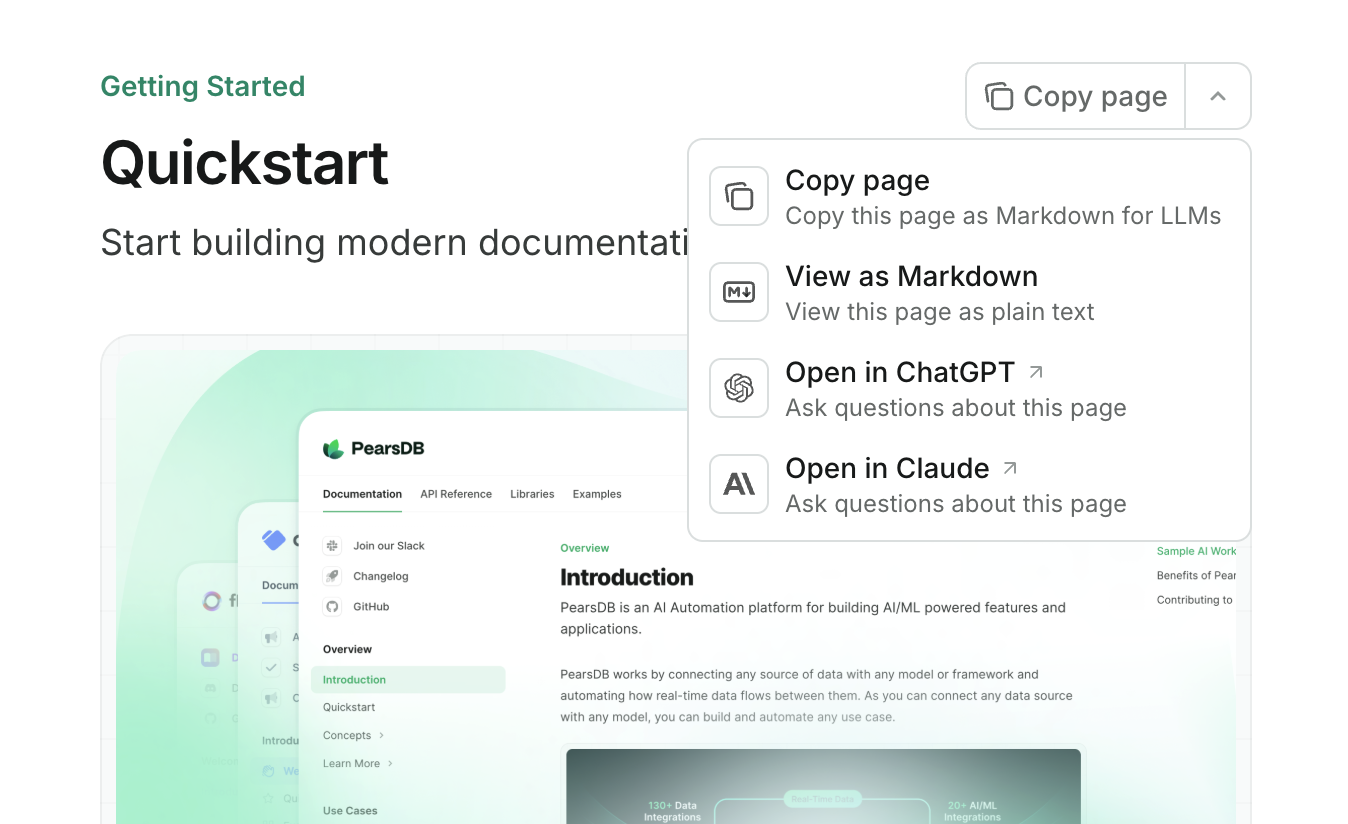
<ResponseField name="contextual" type="object">
  用于 AI 优化内容和集成的上下文菜单。

  <Expandable title="Contextual">
    <ResponseField name="options" type="array of &#x22;copy&#x22; | &#x22;view&#x22; | &#x22;chatgpt&#x22; | &#x22;claude&#x22; | &#x22;perplexity&#x22; | &#x22;mcp&#x22; | &#x22;cursor&#x22; | &#x22;vscode&#x22; | object" required>
      上下文菜单中可用的操作。第一个选项会作为默认选项显示。

      * `copy`: 将当前页面以 Markdown 格式复制到剪贴板。
      * `view`: 在新标签页中以 Markdown 格式查看当前页面。
      * `chatgpt`: 将当前页面内容发送到 ChatGPT。
      * `claude`: 将当前页面内容发送到 Claude。
      * `perplexity`: 将当前页面内容发送到 Perplexity。
      * `mcp`: 将你的 MCP 服务器 URL 复制到剪贴板。
      * `cursor`: 在 Cursor 中安装你托管的 MCP 服务器。
      * `vscode`: 在 VSCode 中安装你托管的 MCP 服务器。

      将自定义上下文菜单选项定义为包含以下属性的对象：

      <Expandable title="Custom option">
        <ResponseField name="title" type="string" required>
          自定义选项的显示标题。
        </ResponseField>

        <ResponseField name="description" type="string" required>
          自定义选项的说明文本。
        </ResponseField>

        <ResponseField name="icon" type="string">
          自定义选项的图标。支持图标库名称、URL、路径或 SVG 代码。
        </ResponseField>

        <ResponseField name="href" type="string or object" required>
          自定义选项的链接目标。可以是简单的 URL 字符串，或带有 `base` 和可选 `query` 参数的对象。

          占位符值：

          * `$page`: 当前页面内容
          * `$path`: 当前页面路径
          * `$mcp`: MCP 服务器 URL
        </ResponseField>
      </Expandable>

      <img src="https://mintcdn.com/anotherhorizon/KtT4EXjd_91dkOA7/images/page-context-menu.png?fit=max&auto=format&n=KtT4EXjd_91dkOA7&q=85&s=936a89a9a55f9db91d5329d67ea28313" alt="上下文菜单" className="rounded-xl" width="1348" height="824" data-path="images/page-context-menu.png" />

      <Note>
        上下文菜单仅在预览和生产环境的部署中可用。
      </Note>
    </ResponseField>
  </Expandable>
</ResponseField>

<div id="api-configurations">
  ### API 配置
</div>

<ResponseField name="API" type="object">
  API 文档和交互式操作台的设置。

  <Expandable title="API">
    <ResponseField name="openapi" type="string or array or object">
      用于生成 API 文档的 OpenAPI 规范文件。可以是单个 URL/路径，也可以是多个 URL/路径组成的数组。

      <Expandable title="openapi">
        <ResponseField name="source" type="string">
          指向你的 OpenAPI 规范文件的 URL 或路径。

          最小长度：1
        </ResponseField>

        <ResponseField name="directory" type="string">
          用于搜索 OpenAPI 文件的目录。

          开头不要包含斜杠。
        </ResponseField>
      </Expandable>

      <CodeGroup>
        ```json 单个文件 theme={null}
        "openapi": "openapi.json"
        ```

        ```json 多个文件 theme={null}
        "openapi": [
          "openapi/v1.json",
          "openapi/v2.json",
          "https://api.example.com/openapi.yaml"
        ]
        ```

        ```json 目录 theme={null}
        "openapi": {
          "source": "openapi.json",
          "directory": "api-docs"
        }
        ```
      </CodeGroup>
    </ResponseField>

    <ResponseField name="asyncapi" type="string or array or object">
      AsyncAPI 规范文件，用于生成 API 文档。可以是单个 URL/路径，也可以是多个 URL/路径组成的数组。

      <Expandable title="asyncapi">
        <ResponseField name="source" type="string">
          指向你的 AsyncAPI 规范文件的 URL 或路径。

          最小长度：1
        </ResponseField>

        <ResponseField name="directory" type="string">
          用于搜索 AsyncAPI 文件的目录。

          开头不要包含斜杠。
        </ResponseField>
      </Expandable>

      <CodeGroup>
        ```json 单个文件 theme={null}
        "asyncapi": "asyncapi.json"
        ```

        ```json 多个文件 theme={null}
        "asyncapi": [
          "asyncapi/events.yaml",
          "asyncapi/webhooks.yaml",
          "https://api.example.com/asyncapi.json"
        ]
        ```

        ```json 目录 theme={null}
        "asyncapi": {
          "source": "asyncapi.json",
          "directory": "websockets"
        }
        ```
      </CodeGroup>
    </ResponseField>

    <ResponseField name="参数" type="object">
      API 参数的显示设置。

      <Expandable title="Params">
        <ResponseField name="expanded" type="&#x22;all&#x22; | &#x22;closed&#x22;">
          是否默认展开所有参数。默认为 `closed`。
        </ResponseField>
      </Expandable>
    </ResponseField>

    <ResponseField name="操作台" type="object">
      API 操作台设置。

      <Expandable title="Playground">
        <ResponseField name="display" type="&#x22;interactive&#x22; | &#x22;simple&#x22; | &#x22;none&#x22;">
          API 操作台的显示模式。默认为 `interactive`。
        </ResponseField>

        <ResponseField name="proxy" type="boolean">
          是否通过代理服务器转发 API 请求。默认为 `true`。
        </ResponseField>
      </Expandable>
    </ResponseField>

    <ResponseField name="示例" type="object">
      自动生成的 API 示例的配置。

      <Expandable title="Examples">
        <ResponseField name="languages" type="array of string">
          自动生成的 API 代码片段所使用的示例语言。支持的语言包括：

          * `bash`（显示为 cURL）
          * `go`
          * `java`
          * `javascript`
          * `node`（显示为 Node.js）
          * `php`
          * `powershell`
          * `python`
          * `ruby`
          * `swift`

          也支持常见别名：`curl`、`golang`、`js`、`nodejs`、`rb`、`sh`。
        </ResponseField>

        <ResponseField name="defaults" type="&#x22;required&#x22; | &#x22;all&#x22;">
          是否在 API 示例中展示可选参数。默认为 `all`。
        </ResponseField>

        <ResponseField name="prefill" type="boolean">
          是否使用 schema 示例数据预填 API 操作台。启用后，操作台会自动使用 OpenAPI 规范中的示例值填充请求字段。默认为 `false`。
        </ResponseField>
      </Expandable>
    </ResponseField>

    <ResponseField name="mdx" type="object">
      从 MDX 文件生成的 API 页面配置。

      <Expandable title="Mdx">
        <ResponseField name="auth" type="object">
          基于 MDX 的 API 请求的认证配置。

          <Expandable title="Auth">
            <ResponseField name="method" type="&#x22;bearer&#x22; | &#x22;basic&#x22; | &#x22;key&#x22; | &#x22;cobo&#x22;">
              API 请求使用的认证方式。
            </ResponseField>

            <ResponseField name="name" type="string">
              API 请求使用的认证名称。
            </ResponseField>
          </Expandable>
        </ResponseField>

        <ResponseField name="server" type="string or array">
          API 请求的服务器配置。
        </ResponseField>
      </Expandable>
    </ResponseField>
  </Expandable>
</ResponseField>

<div id="seo-and-search">
  ### SEO 和搜索
</div>

<ResponseField name="seo" type="object">
  SEO（搜索引擎优化）索引配置。

  <Expandable title="Seo">
    <ResponseField name="metatags" type="object">
      添加到每个页面的 Meta 标签。必须为有效的 key-value 对。可参考[常用 Meta 标签](/zh/optimize/seo#common-meta-tags-reference)获取可选项。
    </ResponseField>

    <ResponseField name="indexing" type="&#x22;navigable&#x22; | &#x22;all&#x22;">
      指定哪些页面应被搜索引擎索引。选择 `navigable` 仅索引位于 `docs.json` 中 navigation 的页面，选择 `all` 则索引所有页面。默认值为 `navigable`。
    </ResponseField>
  </Expandable>
</ResponseField>

<ResponseField name="search" type="object">
  搜索显示设置。

  <Expandable title="Search">
    <ResponseField name="prompt" type="string">
      搜索栏中的占位文本。
    </ResponseField>
  </Expandable>
</ResponseField>

<div id="integrations">
  ### 集成
</div>

<ResponseField name="集成" type="object">
  第三方集成。

  <Expandable title="集成">
    <ResponseField name="Amplitude" type="object">
      Amplitude 分析集成。

      <Expandable title="Amplitude">
        <ResponseField name="apiKey" type="string" required>
          您的 Amplitude API 密钥。
        </ResponseField>
      </Expandable>
    </ResponseField>

    <ResponseField name="clarity" type="object">
      Microsoft Clarity 集成。

      <Expandable title="Clarity">
        <ResponseField name="projectId" type="string" required>
          您的 Microsoft Clarity 项目 ID。
        </ResponseField>
      </Expandable>
    </ResponseField>

    <ResponseField name="clearbit" type="object">
      Clearbit 数据富集集成。

      <Expandable title="Clearbit">
        <ResponseField name="publicApiKey" type="string" required>
          你的 Clearbit API 密钥。
        </ResponseField>
      </Expandable>
    </ResponseField>

    <ResponseField name="fathom" type="object">
      Fathom Analytics 集成。

      <Expandable title="Fathom">
        <ResponseField name="siteId" type="string" required>
          你在 Fathom 中的站点 ID。
        </ResponseField>
      </Expandable>
    </ResponseField>

    <ResponseField name="frontchat" type="object">
      Front Chat 集成。

      <Expandable title="Frontchat">
        <ResponseField name="snippetId" type="string" required>
          您的 Front Chat 代码片段 ID。

          最小长度：6
        </ResponseField>
      </Expandable>
    </ResponseField>

    <ResponseField name="ga4" type="object">
      Google Analytics 4 集成。

      <Expandable title="Ga4">
        <ResponseField name="measurementId" type="string matching ^G" required>
          您的 Google Analytics 4 测量 ID。

          必须符合模式：^G
        </ResponseField>
      </Expandable>
    </ResponseField>

    <ResponseField name="gtm" type="object">
      Google Tag Manager 集成。

      <Expandable title="Gtm">
        <ResponseField name="tagId" type="string matching ^G" required>
          您的 Google Tag Manager 标签 ID。

          必须符合模式：^G
        </ResponseField>
      </Expandable>
    </ResponseField>

    <ResponseField name="heap" type="object">
      Heap Analytics 集成。

      <Expandable title="Heap">
        <ResponseField name="appId" type="string" required>
          您的 Heap 应用 ID。
        </ResponseField>
      </Expandable>
    </ResponseField>

    <ResponseField name="Hightouch" type="object">
      Hightouch 集成。

      <Expandable title="Hightouch">
        <ResponseField name="writeKey" type="string" required>
          你的 Hightouch write key。
        </ResponseField>

        <ResponseField name="apiHost" type="string">
          你的 Hightouch API 主机地址。
        </ResponseField>
      </Expandable>
    </ResponseField>

    <ResponseField name="Hotjar" type="object">
      Hotjar 集成。

      <Expandable title="Hotjar">
        <ResponseField name="hjid" type="string" required>
          您的 Hotjar ID。
        </ResponseField>

        <ResponseField name="hjsv" type="string" required>
          您的 Hotjar 脚本版本。
        </ResponseField>
      </Expandable>
    </ResponseField>

    <ResponseField name="Intercom" type="object">
      Intercom 集成。

      <Expandable title="Intercom">
        <ResponseField name="appId" type="string" required>
          您的 Intercom 应用 ID。

          最小长度：6
        </ResponseField>
      </Expandable>
    </ResponseField>

    <ResponseField name="logrocket" type="object">
      LogRocket 集成。

      <Expandable title="Logrocket">
        <ResponseField name="appId" type="string" required>
          您的 LogRocket 应用 ID。
        </ResponseField>
      </Expandable>
    </ResponseField>

    <ResponseField name="mixpanel" type="object">
      Mixpanel 集成。

      <Expandable title="Mixpanel">
        <ResponseField name="projectToken" type="string" required>
          你的 Mixpanel 项目 token。
        </ResponseField>
      </Expandable>
    </ResponseField>

    <ResponseField name="osano" type="object">
      Osano 集成。

      <Expandable title="Osano">
        <ResponseField name="scriptSource" type="string" required>
          你的 Osano 脚本源。
        </ResponseField>
      </Expandable>
    </ResponseField>

    <ResponseField name="Pirsch" type="object">
      Pirsch Analytics 集成。

      <Expandable title="Pirsch">
        <ResponseField name="id" type="string" required>
          您的 Pirsch ID。
        </ResponseField>
      </Expandable>
    </ResponseField>

    <ResponseField name="posthog" type="object">
      PostHog 集成。

      <Expandable title="Posthog">
        <ResponseField name="apiKey" type="string matching ^phc\_" required>
          你的 PostHog API key。

          必须匹配模式：^phc\_
        </ResponseField>

        <ResponseField name="apiHost" type="string (uri)">
          你的 PostHog API 主机地址。
        </ResponseField>
      </Expandable>
    </ResponseField>

    <ResponseField name="Plausible" type="object">
      Plausible Analytics 集成。

      <Expandable title="Plausible">
        <ResponseField name="domain" type="string" required>
          您的 Plausible 域名。
        </ResponseField>

        <ResponseField name="server" type="string">
          您的 Plausible 服务器。
        </ResponseField>
      </Expandable>
    </ResponseField>

    <ResponseField name="Segment" type="object">
      Segment 集成。

      <Expandable title="Segment">
        <ResponseField name="key" type="string" required>
          您的 Segment key。
        </ResponseField>
      </Expandable>
    </ResponseField>

    <ResponseField name="遥测/使用数据" type="object">
      遥测/使用数据设置。

      <Expandable title="遥测/使用数据">
        <ResponseField name="enabled" type="boolean">
          是否启用遥测/使用数据。

          <Note>
            当该值为 `false` 时，反馈功能也会被禁用，并且不会显示在你的文档页面上。
          </Note>
        </ResponseField>
      </Expandable>
    </ResponseField>

    <ResponseField name="Cookie" type="object">
      Cookie 设置。

      <Expandable title="Cookies">
        <ResponseField name="key" type="string">
          Cookie 的 key。
        </ResponseField>

        <ResponseField name="value" type="string">
          Cookie 的值。
        </ResponseField>
      </Expandable>
    </ResponseField>
  </Expandable>
</ResponseField>

<div id="errors">
  ### 错误
</div>

<ResponseField name="errors" type="object">
  错误处理设置。

  <Expandable title="错误">
    <ResponseField name="404" type="object">
      404 “页面未找到” 错误的处理。

      <Expandable title="404">
        <ResponseField name="redirect" type="boolean">
          页面未找到时是否自动重定向到首页。默认值为 `true`。
        </ResponseField>

        <ResponseField name="title" type="string">
          404 错误页面的自定义 title。
        </ResponseField>

        <ResponseField name="description" type="string">
          404 错误页面的自定义说明。支持基本 MDX 格式，包括链接、加粗和斜体文本。不支持自定义组件。
        </ResponseField>
      </Expandable>
    </ResponseField>
  </Expandable>
</ResponseField>

<div id="examples">
  ## 示例
</div>

<Tabs>
  <Tab title="基础示例">
    ```json docs.json lines wrap theme={null}
    {
      "$schema": "https://mintlify.com/docs.json",
      "theme": "maple",
      "name": "Example Co.",
      "description": "Example Co. 是一家提供示例内容和占位符文本的公司。",
      "colors": {
        "primary": "#3B82F6",
        "light": "#F8FAFC",
        "dark": "#0F172A"
      },
      "navigation": {
        "dropdowns": [
          {
            "dropdown": "文档",
            "icon": "book",
            "description": "如何使用 Example Co. 产品",
            "groups": [
              {
                "group": "快速开始",
                "pages": [
                  "index",
                  "quickstart"
                ]
              },
              {
                "group": "自定义",
                "pages": [
                  "settings",
                  "users",
                  "features"
                ]
              },
              {
                "group": "计费",
                "pages": [
                  "billing/overview",
                  "billing/payments",
                  "billing/subscriptions"
                ]
              }
            ]
          },
          {
            "dropdown": "更新日志",
            "icon": "history",
            "description": "更新和变更",
            "pages": [
              "changelog"
            ]
          }
        ]
      },
      "logo": {
        "light": "/logo-light.svg",
        "dark": "/logo-dark.svg",
        "href": "https://example.com"
      },
      "navbar": {
        "links": [
          {
            "label": "社区",
            "href": "https://example.com/community"
          }
        ],
        "primary": {
          "type": "button",
          "label": "开始使用",
          "href": "https://example.com/start"
        }
      },
      "footer": {
        "socials": {
          "x": "https://x.com/example",
          "linkedin": "https://www.linkedin.com/company/example",
          "github": "https://github.com/example",
          "slack": "https://example.com/community"
        },
        "links": [
          {
            "header": "资源",
            "items": [
              {
                "label": "客户",
                "href": "https://example.com/customers"
              },
              {
                "label": "企业版",
                "href": "https://example.com/enterprise"
              },
              {
                "label": "申请预览",
                "href": "https://example.com/preview"
              }
            ]
          },
          {
            "header": "公司",
            "items": [
              {
                "label": "招聘",
                "href": "https://example.com/careers"
              },
              {
                "label": "博客",
                "href": "https://example.com/blog"
              },
              {
                "label": "隐私政策",
                "href": "https://example.com/legal/privacy"
              }
            ]
          }
        ]
      },
      "integrations": {
        "ga4": {
          "measurementId": "G-XXXXXXXXXX"
        },
        "telemetry": {
          "enabled": true
        },
        "cookies": {
          "key": "example_cookie_key",
          "value": "example_cookie_value"
        }
      },
      "contextual": {
        "options": [
          "copy",
          "view",
          "chatgpt",
          "claude"
        ]
      },
      "errors": {
        "404": {
          "redirect": false,
          "title": "找不到页面",
          "description": "这个_页面_到底**发生了什么**？"
        }
      }
    }
    ```
  </Tab>

  <Tab title="交互式 API 示例">
    ```json docs.json {43,44,45,46,47,48,49,50,51,52,53,54,55,56,57,58,59,60,61,72,73,74,75,76,77,78,79} lines wrap theme={null}
    {
      "$schema": "https://mintlify.com/docs.json",
      "theme": "maple",
      "name": "Example Co.",
      "description": "Example Co. 是一家提供示例内容和占位符文本的公司。",
      "colors": {
        "primary": "#3B82F6",
        "light": "#F8FAFC",
        "dark": "#0F172A"
      },
      "navigation": {
        "dropdowns": [
          {
            "dropdown": "文档",
            "icon": "book",
            "description": "如何使用 Example Co. 产品",
            "groups": [
              {
                "group": "快速入门",
                "pages": [
                  "index",
                  "quickstart"
                ]
              },
              {
                "group": "自定义配置",
                "pages": [
                  "settings",
                  "users",
                  "features"
                ]
              },
              {
                "group": "计费管理",
                "pages": [
                  "billing/overview",
                  "billing/payments",
                  "billing/subscriptions"
                ]
              }
            ]
          },
          {
            "dropdown": "API 参考",
            "icon": "terminal",
            "description": "如何使用 Example Co. API",
            "groups": [
              {
                "group": "API 参考",
                "pages": [
                  "api-reference/introduction"
                ]
              },
              {
                "group": "接口端点",
                "openapi": {
                  "source": "openapi.json"
                }
              }
            ]
          },
          {
            "dropdown": "更新日志",
            "icon": "history",
            "description": "更新和变更记录",
            "pages": [
              "changelog"
            ]
          }
        ]
      },
      "api": {
        "playground": {
          "display": "interactive"
        },
        "examples": {
          "languages": ["javascript", "curl", "python"]
        }
      },
      "logo": {
        "light": "/logo-light.svg",
        "dark": "/logo-dark.svg",
        "href": "https://example.com"
      },
      "navbar": {
        "links": [
          {
            "label": "社区",
            "href": "https://example.com/community"
          }
        ],
        "primary": {
          "type": "button",
          "label": "立即开始",
          "href": "https://example.com/start"
        }
      },
      "footer": {
        "socials": {
          "x": "https://x.com/example",
          "linkedin": "https://www.linkedin.com/company/example",
          "github": "https://github.com/example",
          "slack": "https://example.com/community"
        },
        "links": [
          {
            "header": "资源",
            "items": [
              {
                "label": "客户案例",
                "href": "https://example.com/customers"
              },
              {
                "label": "企业版",
                "href": "https://example.com/enterprise"
              },
              {
                "label": "申请预览",
                "href": "https://example.com/preview"
              }
            ]
          },
          {
            "header": "公司",
            "items": [
              {
                "label": "招聘信息",
                "href": "https://example.com/careers"
              },
              {
                "label": "博客",
                "href": "https://example.com/blog"
              },
              {
                "label": "隐私政策",
                "href": "https://example.com/legal/privacy"
              }
            ]
          }
        ]
      },
      "integrations": {
        "ga4": {
          "measurementId": "G-XXXXXXXXXX"
        },
        "telemetry": {
          "enabled": true
        },
        "cookies": {
          "key": "example_cookie_key",
          "value": "example_cookie_value"
        }
      },
      "contextual": {
        "options": [
          "copy",
          "view",
          "chatgpt",
          "claude"
        ]
      },
      "errors": {
        "404": {
          "redirect": false,
          "title": "页面未找到",
          "description": "这个页面**到底**_去哪了_？"
        }
      }
    }
    ```
  </Tab>

  <Tab title="多语言示例">
    ```json docs.json lines wrap theme={null}
    {
      "$schema": "https://mintlify.com/docs.json",
      "theme": "maple",
      "name": "Example Co.",
      "description": "Example Co. 是一家提供示例内容和占位符文本的公司。",
      "colors": {
        "primary": "#3B82F6",
        "light": "#F8FAFC",
        "dark": "#0F172A"
      },
      "navigation": {
        "global": {
          "anchors": [
            {
              "anchor": "文档",
              "href": "https://mintlify.com/docs"
            },
            {
              "anchor": "更新日志",
              "href": "https://mintlify.com/docs/changelog"
            }
          ]
        },
        "languages": [ // [!code highlight:3]
          {
            "language": "en",
            "dropdowns": [
              {
                "dropdown": "文档",
                "icon": "book",
                "description": "如何使用 Example Co. 产品",
                "pages": [
                  {
                    "group": "快速入门",
                    "pages": ["index", "quickstart"]
                  },
                  {
                    "group": "自定义配置",
                    "pages": ["settings", "users", "features"]
                  },
                  {
                    "group": "计费管理",
                    "pages": [
                      "billing/overview",
                      "billing/payments",
                      "billing/subscriptions"
                    ]
                  }
                ]
              },
              {
                "dropdown": "更新日志",
                "icon": "history",
                "description": "产品更新和变更记录",
                "pages": ["changelog"]
              }
            ]
          },
          {
            "language": "es",// [!code highlight]
            "dropdowns": [
              {
                "dropdown": "Documentación",
                "icon": "book",
                "description": "Cómo usar el producto de Example Co.",
                "pages": [
                  {
                    "group": "Comenzando",
                    "pages": ["es/index", "es/quickstart"]
                  },
                  {
                    "group": "Personalización",
                    "pages": ["es/settings", "es/users", "es/features"]
                  },
                  {
                    "group": "Billing",
                    "pages": [
                      "es/billing/overview",
                      "es/billing/payments",
                      "es/billing/subscriptions"
                    ]
                  }
                ]
              },
              {
                "dropdown": "Changelog",
                "icon": "history",
                "description": "Actualizaciones y cambios",
                "pages": ["es/changelog"]
              }
            ]
          }
        ]
      },
      "logo": {
        "light": "/logo-light.svg",
        "dark": "/logo-dark.svg",
        "href": "https://example.com"
      },
      "navbar": {
        "links": [
          {
            "label": "社区",
            "href": "https://example.com/community"
          }
        ],
        "primary": {
          "type": "button",
          "label": "立即开始",
          "href": "https://example.com/start"
        }
      },
      "footer": {
        "socials": {
          "x": "https://x.com/example",
          "linkedin": "https://www.linkedin.com/company/example",
          "github": "https://github.com/example",
          "slack": "https://example.com/community"
        },
        "links": [
          {
            "header": "资源",
            "items": [
              {
                "label": "客户案例",
                "href": "https://example.com/customers"
              },
              {
                "label": "企业版",
                "href": "https://example.com/enterprise"
              },
              {
                "label": "申请试用",
                "href": "https://example.com/preview"
              }
            ]
          },
          {
            "header": "公司",
            "items": [
              {
                "label": "招聘信息",
                "href": "https://example.com/careers"
              },
              {
                "label": "博客",
                "href": "https://example.com/blog"
              },
              {
                "label": "隐私政策",
                "href": "https://example.com/legal/privacy"
              }
            ]
          }
        ]
      },
      "integrations": {
        "ga4": {
          "measurementId": "G-XXXXXXXXXX"
        },
        "telemetry": {
          "enabled": true
        },
        "cookies": {
          "key": "example_cookie_key",
          "value": "example_cookie_value"
        }
      },
      "contextual": {
        "options": ["copy", "view", "chatgpt", "claude"]
      },
      "errors": {
        "404": {
          "redirect": false,
          "title": "页面未找到",
          "description": "这个_页面_到底**怎么了**？"
        }
      }
    }
    ```
  </Tab>
</Tabs>

<div id="upgrading-from-mintjson">
  ## 从 `mint.json` 升级
</div>

如果你的文档项目仍在使用已废弃的 `mint.json` 文件，请按照以下步骤升级到 `docs.json`。

<Steps>
  <Step title="安装或更新命令行界面（CLI）">
    如果你尚未安装[命令行界面（CLI）](/zh/installation)，请先安装：

    <CodeGroup>
      ```bash npm theme={null}
      npm i -g mint
      ```

      ```bash yarn theme={null}
      yarn global add mint
      ```

      ```bash pnpm theme={null}
      pnpm add -g mint
      ```
    </CodeGroup>

    如果你已经安装了 CLI，请确保其为最新版本：

    ```bash theme={null}
    mint update
    ```
  </Step>

  <Step title="创建 docs.json 文件">
    在你的文档存储库中运行：

    ```bash theme={null}
    mint upgrade
    ```

    该命令会根据现有的 `mint.json` 生成一个 `docs.json` 文件。请检查生成的文件以确保所有设置正确。
  </Step>

  <Step title="删除 mint.json 文件">
    在确认 `docs.json` 配置无误后，即可安全删除旧的 `mint.json` 文件。
  </Step>
</Steps>