> ## Documentation Index
> Fetch the complete documentation index at: https://wiki.another-horizon.eu/llms.txt
> Use this file to discover all available pages before exploring further.
# GitHub
> 连接 GitHub 存储库,以启用自动部署、拉取请求(PR;亦称“合并请求”/Merge Request)预览和持续同步。
Mintlify 使用 GitHub 应用,将你的文档与 GitHub 存储库自动同步。
**你是否需要安装 GitHub 应用?**
* `mintlify-community` 组织中的 **由 Mintlify 托管的存储库**:不需要。GitHub 应用已配置完成。
* **你自己的存储库**:需要。安装 GitHub 应用,以在你推送更改时启用自动部署。
在控制台的 [Git Settings](https://dashboard.mintlify.com/settings/deployment/git-settings) 页面查看你的存储库。
如果你的存储库位于 Mintlify 组织名下的私有存储库中,GitHub 应用会由 Mintlify 自动配置和管理。你可以使用 Web 编辑器对文档进行修改。如果你想在本地编辑文档,请将存储库克隆到你自己的组织,并在 Git 设置中更新为使用你自己的存储库。
## 克隆到你自己的存储库
如果你在入门引导过程中跳过了连接自己的 Git 存储库,你的文档目前位于 Mintlify 组织名下的私有存储库中。要将其迁移到你自己的账号或组织:
1. 在控制台中前往 [Git Settings](https://dashboard.mintlify.com/settings/deployment/git-settings)。
2. 点击 **Clone as Private** 或 **Clone as Public**。Public 存储库允许任何人查看你的文档源码并提交 Issue 或建议;Private 存储库则会将访问权限限制在你的团队内部。
3. 按照下文 [Install the GitHub App](#install-the-github-app) 中的步骤安装 GitHub 应用。
## 安装 GitHub 应用
你必须在存储库中拥有组织所有者或管理员权限才能安装该应用。如果你没有相应权限,需要由存储库所有者批准安装请求。
通过你的[控制台](https://dashboard.mintlify.com/settings/organization/github-app)安装 Mintlify GitHub 应用。
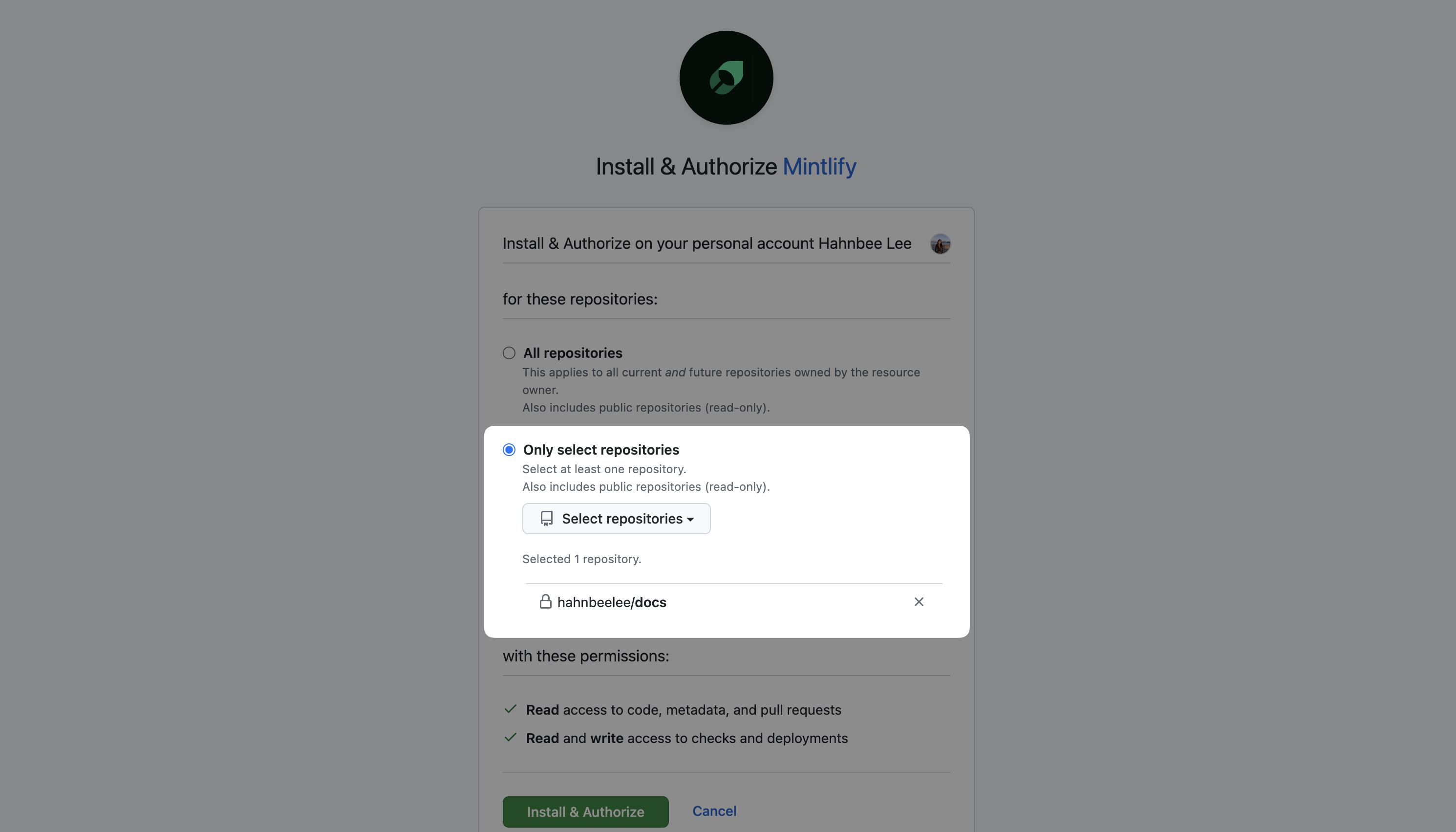
我们建议只为你的文档存储库授予访问权限。
## 权限
安装 GitHub 应用时,请授予以下权限:
读取权限:
* `metadata`:基本存储库信息
读取和写入权限:
* `checks`:在拉取请求(PR)上创建状态检查
* `code`:当你向文档分支提交时读取文件更改
* `deployments`:为拉取请求(PR)生成预览部署
* `pull requests`:通过网页版编辑器创建分支和拉取请求(PR)
该应用仅会访问你明确授予其访问权限的存储库。若启用了分支保护规则,该应用无法直接推送到受保护的分支。
## 管理存储库访问
安装 GitHub 应用时,你可以授予对所有或特定存储库的访问权限。我们建议仅为你的文档存储库,以及任何你希望作为智能助手上下文提供的存储库授予访问权限。你可以随时在 [GitHub 应用设置](https://github.com/apps/mintlify/installations/new) 中修改此选择。
## 配置文档来源
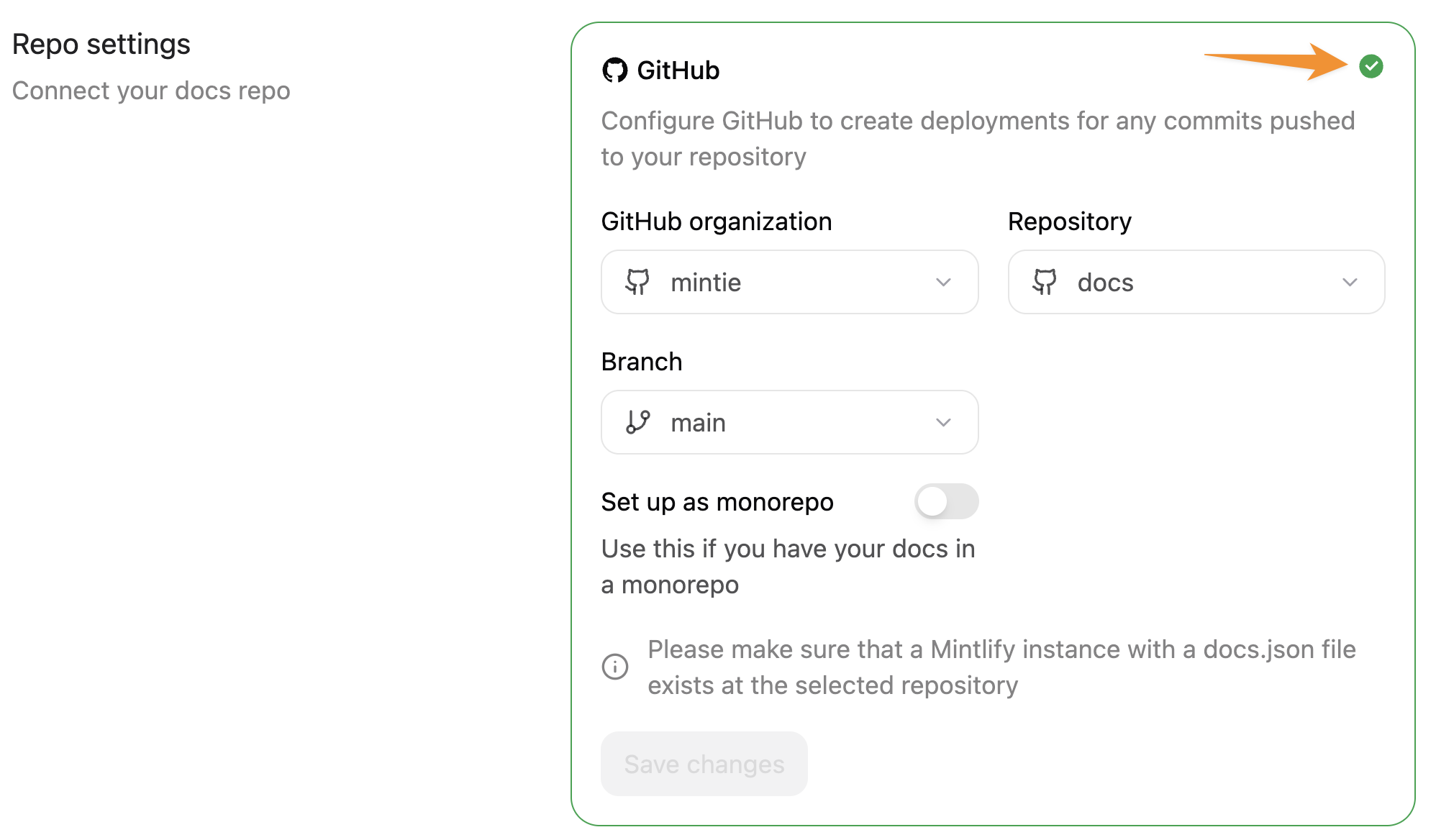
在控制台的 [Git Settings](https://dashboard.mintlify.com/settings/deployment/git-settings) 部分,您可以更改用于构建文档的组织、存储库或 branch。
## 启用 IP 允许列表的 GitHub Enterprise
如果你的 GitHub Enterprise Cloud 组织启用了 IP 允许列表,你需要将 Mintlify 的出口 IP 地址(`54.242.90.151`)添加到允许列表中,才能确保 GitHub 应用正常运行。
请按照 [GitHub 的文档](https://docs.github.com/en/enterprise-cloud@latest/organizations/keeping-your-organization-secure/managing-security-settings-for-your-organization/managing-allowed-ip-addresses-for-your-organization) 配置 IP 允许列表。
## 故障排查
### 部署未自动触发
如果向存储库推送代码后没有触发部署,请检查以下可能的问题。
检查是否已在正确的存储库中安装该应用。
1. 在控制台中前往 [GitHub 应用设置](https://dashboard.mintlify.com/settings/organization/github-app)。
2. 确认你的存储库出现在已启用的应用安装列表中。
确保你正在推送到正确的 branch。
1. 前往 [Git 设置](https://dashboard.mintlify.com/settings/deployment/git-settings)
2. 验证控制台中配置的 branch 是否与你实际推送的 branch 一致。
### GitHub 应用连接问题
如果你遇到 GitHub 应用相关问题,重置连接通常可以解决大多数情况。
1. 在 GitHub 中,前往 [installations](https://github.com/settings/installations),在 Mintlify 应用旁点击 **Configure**。向下滚动并选择 **Uninstall**。
2. 前往 [Authorized GitHub Apps](https://github.com/settings/apps/authorizations),在 Mintlify 应用旁选择 **Revoke**。
1. 在你的 Mintlify 控制台中,前往 [Git Settings](https://dashboard.mintlify.com/settings/deployment/git-settings) 并安装 GitHub 应用。
2. 在控制台的 [My Profile](https://dashboard.mintlify.com/settings/account) 中授权你的账户。
### 反馈附加组件不可用
如果你无法在控制台中启用“编辑建议”或“提交问题”选项,并且你的存储库为公开状态,请重新验证你的 Git 设置。
前往控制台中的 [Git Settings](https://dashboard.mintlify.com/settings/deployment/git-settings)。
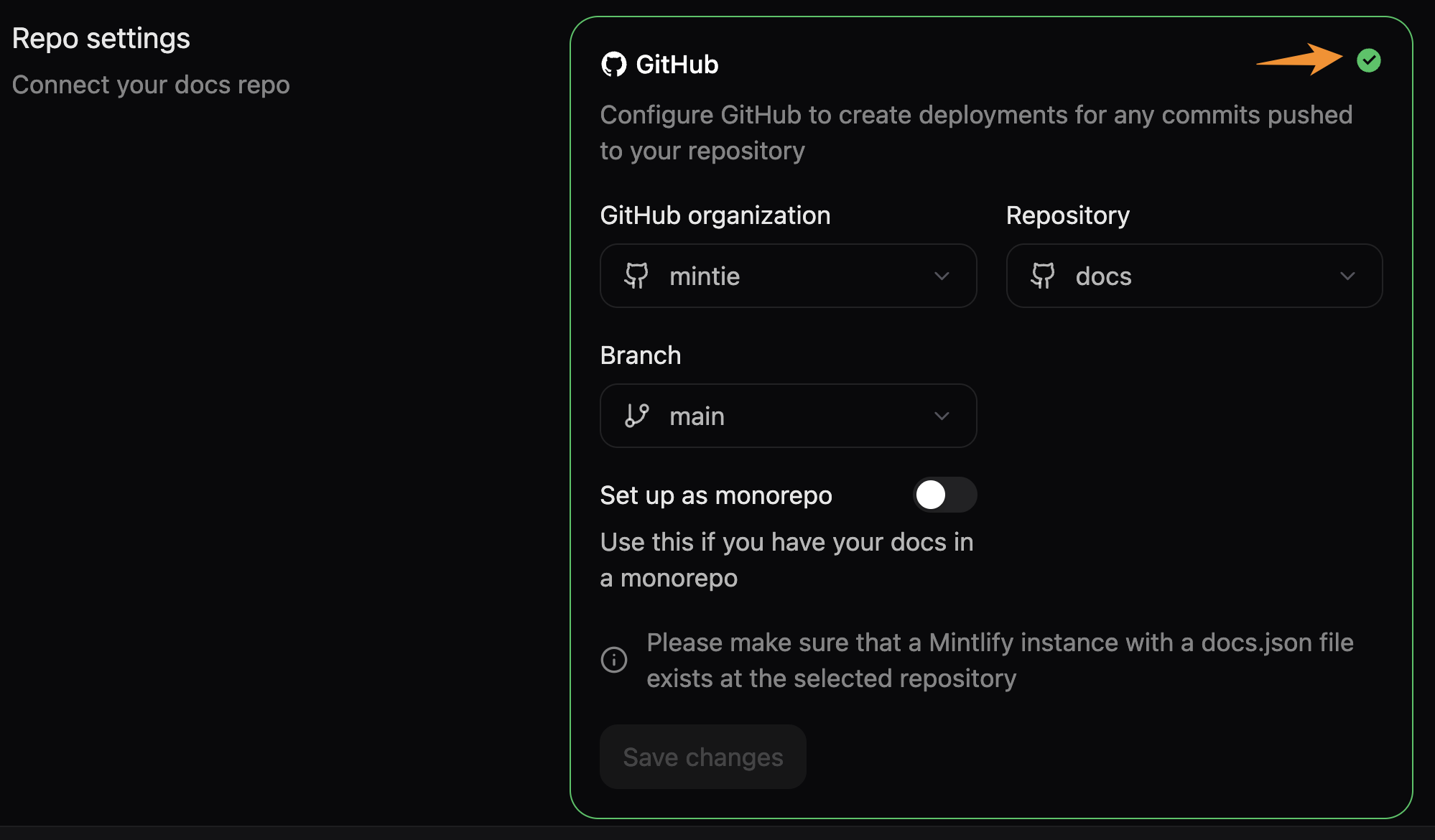
点击 Git 设置卡片右上角的绿色勾选图标以重新验证存储库设置。此操作会强制更新设置,以准确反映你的存储库是公开还是私有。