> ## Documentation Index
> Fetch the complete documentation index at: https://wiki.another-horizon.eu/llms.txt
> Use this file to discover all available pages before exploring further.
# Slack 机器人
> 为你的 Slack 工作区添加一个机器人,根据你的文档回答问题。
Slack 应用适用于包含 AI 助手功能的[专业版和自定义方案](https://mintlify.com/pricing?ref=slack-app)。
Slack 应用会在你的工作区中添加一个机器人,为你的社区提供实时解答支持。该机器人使用 Mintlify AI 助手搜索你的文档并提供准确且带引用的回复,因此信息始终是最新的。
该机器人只能查看你明确将其添加到的频道中的消息。它不具备对整个工作区的全局读取权限。
该机器人会响应 `@` 提及,或你配置的特定频道中的所有消息。
每条由机器人发送的消息都会计入你的 AI 助手消息用量。
## 设置 Slack 应用
如果在你的 Slack 工作区中,安装应用需要 Workspace Owner 批准,请先请 Workspace Owner 批准 Mintlify Slack 应用,然后再进行添加。
1. 在控制台中进入 **AI 助手配置(Assistant Configurations)** 页面,导航到 [Integrations](https://dashboard.mintlify.com/products/assistant/settings/integrations) 标签页。
2. 在 Slack 卡片中,点击 **Connect**。Slack 随即会打开。
 1. 按照 Slack 中的提示将应用添加到你的工作区(workspace)。
2. 在频道中提及该机器人以将其添加到频道。机器人的默认名称是 `@mintlify-assistant`。
1. 按照 Slack 中的提示将应用添加到你的工作区(workspace)。
2. 在频道中提及该机器人以将其添加到频道。机器人的默认名称是 `@mintlify-assistant`。
## 创建一个 `#ask-ai` 频道
为了帮助你的用户快速获得问题的解答,机器人可以回复你选择的某个频道中的每一条消息。默认情况下,机器人会回复所有名为 `#ask-ai` 的频道中的消息。创建一个 `#ask-ai` 频道,并告知你的用户机器人会回复该频道中的消息。更多信息请参阅 Slack 帮助中心中的 [Create a channel](https://slack.com/help/articles/201402297-Create-a-channel)。
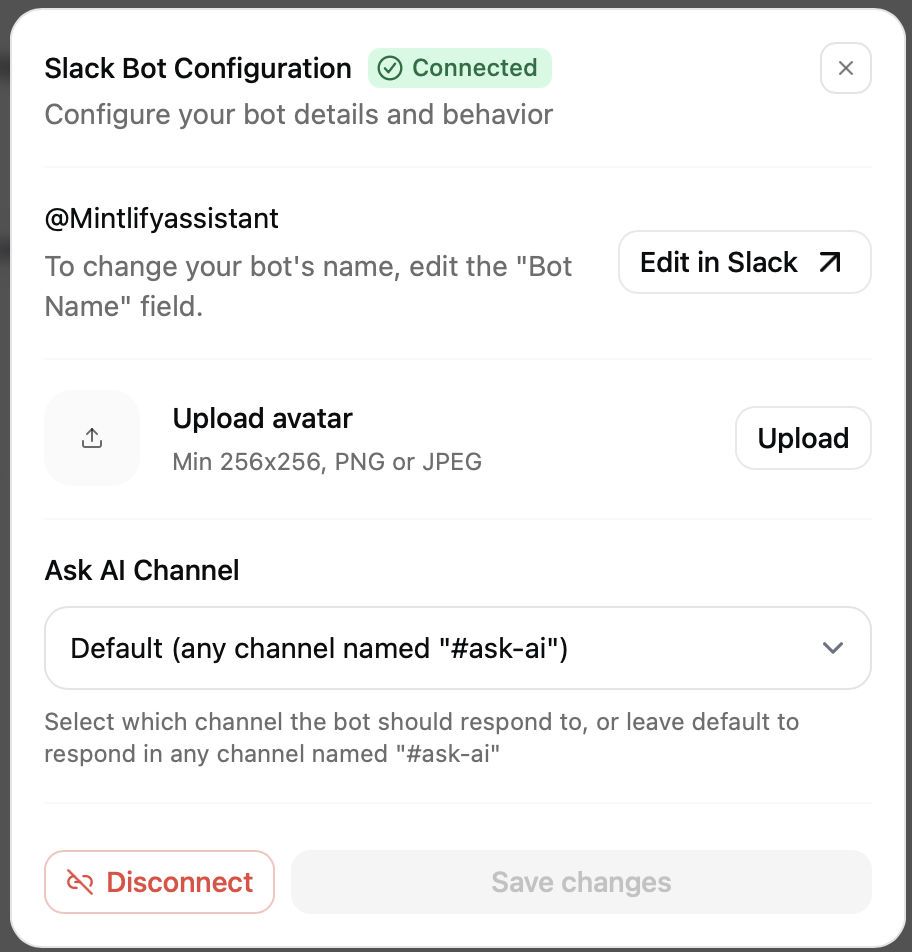
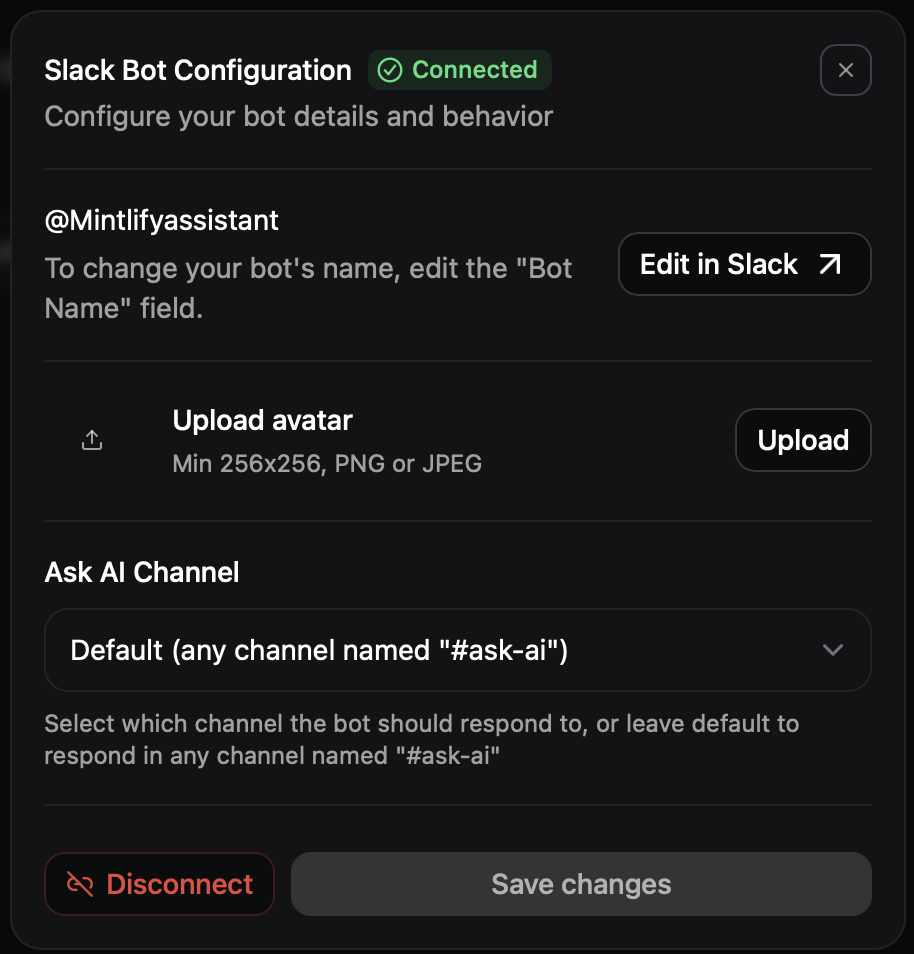
如果你希望机器人在其他频道中回复消息,请在 Slack 机器人的 [配置菜单](https://dashboard.mintlify.com/products/assistant/settings/integrations) 中选择一个频道。
## 管理 Slack 应用
将应用添加到你的工作区后,你可以在 [Integrations](https://dashboard.mintlify.com/products/assistant/settings/integrations) 标签页管理或移除该应用。
在 Slack 机器人配置菜单中,你可以通过更改头像或名称来自定义机器人,并选择要在哪个频道中自动回复所有消息。