> ## Documentation Index
> Fetch the complete documentation index at: https://wiki.another-horizon.eu/llms.txt
> Use this file to discover all available pages before exploring further.
# 上下文菜单
> 为你的文档添加一键集成的 AI 功能。
export const PreviewButton = ({children, href}) => {
return
{children}
;
};
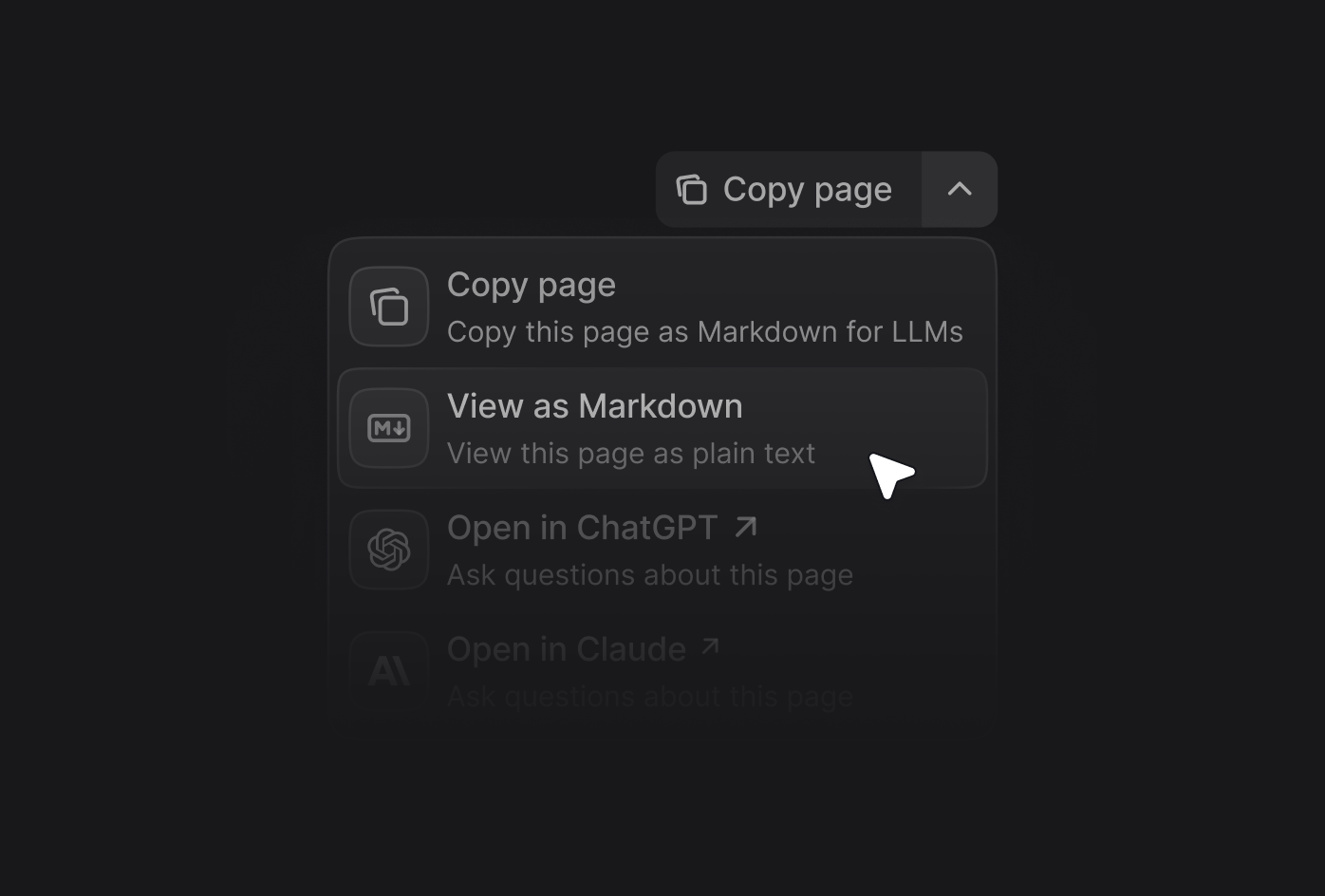
上下文菜单可快速访问经 AI 优化的内容,以及与主流 AI 工具的直接集成。用户在任意页面打开上下文菜单时,可以将内容复制为 AI 工具的 context,或在 ChatGPT、Claude、Perplexity,或你自定义的工具中直接开启对话,并自动加载你的文档作为 context。
上下文菜单包含多个内置选项,你可以通过将其标识符添加到配置中来启用。
| 选项 | 标识符 | 说明 |
| :------------------- | :----------- | :---------------------------------- |
| **复制页面** | `copy` | 将当前页面复制为 Markdown,便于作为上下文粘贴到 AI 工具中 |
| **以 Markdown 查看** | `view` | 以 Markdown 打开当前页面 |
| **在 ChatGPT 中打开** | `chatgpt` | 使用当前页面作为上下文创建一个 ChatGPT 会话 |
| **在 Claude 中打开** | `claude` | 使用当前页面作为上下文创建一个 Claude 会话 |
| **在 Perplexity 中打开** | `perplexity` | 使用当前页面作为上下文创建一个 Perplexity 会话 |
| **复制 MCP 服务器 URL** | `mcp` | 将你的 MCP 服务器 URL 复制到剪贴板 |
| **连接到 Cursor** | `cursor` | 在 Cursor 中安装你托管的 MCP 服务器 |
| **连接到 VS Code** | `vscode` | 在 VS Code 中安装你托管的 MCP 服务器 |
| **自定义选项** | Object | 向上下文菜单添加自定义选项 |
## 添加自定义选项
通过向 `options` 数组添加一个对象,在上下文菜单中创建自定义选项。每个自定义选项需要包含以下属性:
选项的标题。
选项的说明。在展开上下文菜单时显示于标题下方。
要显示的 icon。
选项:
* [Font Awesome icon](https://fontawesome.com/icons) 名称
* [Lucide icon](https://lucide.dev/icons) 名称
* 用花括号包裹的、与 JSX 兼容的 SVG 代码
* 指向外部托管 icon 的 URL
* 项目中 icon 文件的路径
针对自定义 SVG 图标:
1. 使用 [SVGR converter](https://react-svgr.com/playground/) 将你的 SVG 进行转换。
2. 将 SVG 代码粘贴到 SVG 输入框。
3. 从 JSX 输出框复制完整的 `... ` 元素。
4. 用花括号包裹与 JSX 兼容的 SVG 代码:`icon={ ... }`。
5. 按需调整 `height` 和 `width`。
[Font Awesome](https://fontawesome.com/icons) 的 icon 样式。仅在使用 Font Awesome 图标时使用。
选项:`regular`、`solid`、`light`、`thin`、`sharp-solid`、`duotone`、`brands`。
选项的 href。简单链接使用字符串,带有 query 参数的动态链接使用对象。
选项的基础 URL。
选项的 query 参数。
query 参数的 key。
query 参数的值。我们会将以下占位符替换为对应的值:
* 使用 `$page` 插入当前页面内容(Markdown 格式)。
* 使用 `$path` 插入当前页面路径。
* 使用 `$mcp` 插入托管的 MCP 服务器 URL。
自定义选项示例:
```json {9-14} wrap theme={null}
{
"contextual": {
"options": [
"copy",
"view",
"chatgpt",
"claude",
"perplexity",
{
"title": "功能请求",
"description": "在 GitHub 上参与讨论,请求新功能",
"icon": "plus",
"href": "https://github.com/orgs/mintlify/discussions/categories/feature-requests"
}
]
}
}
```
### 自定义选项示例
```json theme={null}
{
"title": "请求新功能",
"description": "在 GitHub 上参与讨论",
"icon": "plus",
"href": "https://github.com/orgs/mintlify/discussions/categories/feature-requests"
}
```
```json theme={null}
{
"title": "在 X 上分享",
"description": "将此页面分享至 X",
"icon": "x",
"href": {
"base": "https://x.com/intent/tweet",
"query": [
{
"key": "text",
"value": "查看这份文档:$page"
}
]
}
}
```
 在你的 `docs.json` 文件中添加 `contextual` 字段,并指定要包含的选项。
```json theme={null}
{
"contextual": {
"options": [
"copy",
"view",
"chatgpt",
"claude",
"perplexity",
"mcp",
"cursor",
"vscode"
]
}
}
```
在你的 `docs.json` 文件中添加 `contextual` 字段,并指定要包含的选项。
```json theme={null}
{
"contextual": {
"options": [
"copy",
"view",
"chatgpt",
"claude",
"perplexity",
"mcp",
"cursor",
"vscode"
]
}
}
```