> ## Documentation Index
> Fetch the complete documentation index at: https://wiki.another-horizon.eu/llms.txt
> Use this file to discover all available pages before exploring further.

# AI 助手

> 为你的文档添加 AI 驱动的聊天功能，能够回答问题、标注来源并生成代码示例。

<Info>
  AI 助手会在 [Pro 和 Custom 方案](https://mintlify.com/pricing?ref=assistant) 中自动启用。
</Info>

<div id="about-the-assistant">
  ## 关于 AI 助手
</div>

AI 助手通过自然语言查询回答与文档相关的问题。它直接嵌入在你的文档站点中，用户可以快速找到答案，更顺利地使用你的产品。

AI 助手使用由 Claude Opus 4.5 驱动的 agentic RAG（检索增强生成）和工具调用功能。当用户提问时，AI 助手会：

* **搜索和检索** 文档中的相关内容，以提供准确的回答。
* **引用来源** 并提供可点击的链接，将用户直接带到被引用的页面。
* **生成可复制的代码示例**，帮助用户基于你的文档实现解决方案。

每条发送给 AI 助手的消息都会计入你当前套餐的消息额度。如果超出额度，额外消息将产生超额费用。你可以设置支出上限，或在达到消息额度时禁用 AI 助手。

你可以在控制台查看 AI 助手的使用情况，以了解用户行为和文档效果。你还可以导出并分析查询数据，以帮助识别：

* 可能需要更好覆盖的常见问题。
* 用户难以找到答案的内容空白。
* 可以通过补充内容获益的热门主题。

<div id="configure-the-assistant">
  ## 配置 AI 助手
</div>

在 Pro 和 Custom 方案中，AI 助手默认启用。

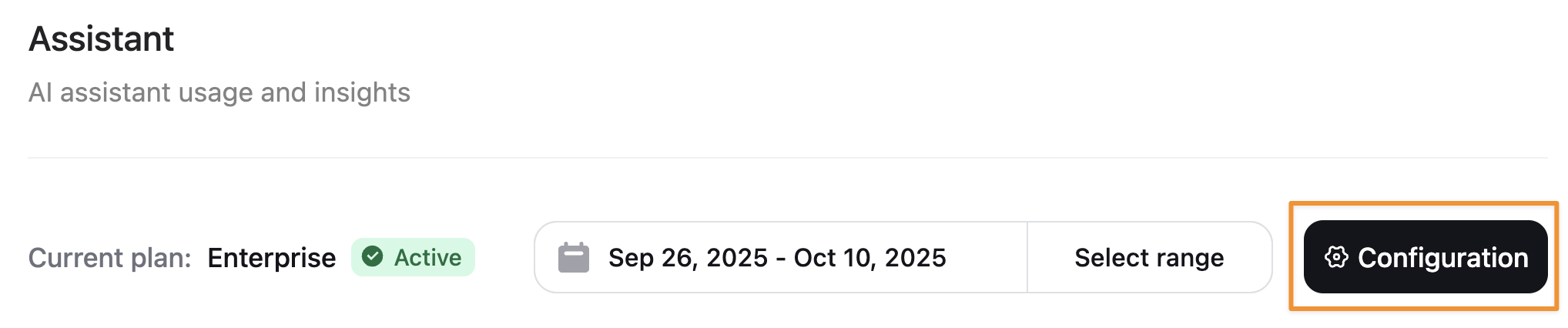
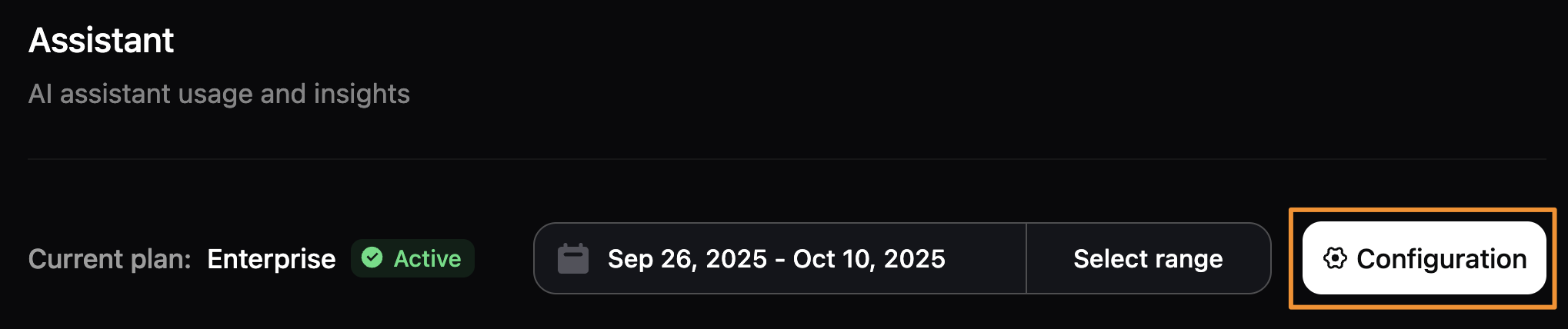
在你的[控制台](https://dashboard.mintlify.com/products/assistant/settings)中管理 AI 助手。点击 **Configuration** 以启用或停用 AI 助手、配置响应处理方式、添加默认问题，并设置支出上限。

<Frame>
  <img src="https://mintcdn.com/anotherhorizon/xUu33r2fE-ckWJ-B/images/assistant/configuration-light.png?fit=max&auto=format&n=xUu33r2fE-ckWJ-B&q=85&s=1bedbf773c17fc6578f0eba3435af8e6" alt="控制台中的 AI 助手工具栏，其中的 Configuration 按钮用橙色矩形突出显示。" className="block dark:hidden" width="2036" height="426" data-path="images/assistant/configuration-light.png" />

  <img src="https://mintcdn.com/anotherhorizon/xUu33r2fE-ckWJ-B/images/assistant/configuration-dark.png?fit=max&auto=format&n=xUu33r2fE-ckWJ-B&q=85&s=e7c2d8fd89c33b811445d882c57d6134" alt="控制台中的 AI 助手工具栏，其中的 Configuration 按钮用橙色矩形突出显示。" className="hidden dark:block" width="2038" height="428" data-path="images/assistant/configuration-dark.png" />
</Frame>

<div id="enable-or-disable-the-assistant">
  ### 启用或停用 AI 助手
</div>

在文档站点上切换 AI 助手的状态，以启用或停用 AI 助手。

<Frame>
  <img src="https://mintcdn.com/anotherhorizon/xUu33r2fE-ckWJ-B/images/assistant/status-light.png?fit=max&auto=format&n=xUu33r2fE-ckWJ-B&q=85&s=74ed3df474a3a0ef26fe160475770b7f" alt="控制台中的 AI 助手状态开关。" className="block dark:hidden" width="2038" height="338" data-path="images/assistant/status-light.png" />

  <img src="https://mintcdn.com/anotherhorizon/xUu33r2fE-ckWJ-B/images/assistant/status-dark.png?fit=max&auto=format&n=xUu33r2fE-ckWJ-B&q=85&s=986f333898a67944a6bcdcc713e1618a" alt="控制台中的 AI 助手状态开关。" className="hidden dark:block" width="2040" height="338" data-path="images/assistant/status-dark.png" />
</Frame>

<div id="set-deflection-email">
  ### 设置分流邮箱
</div>

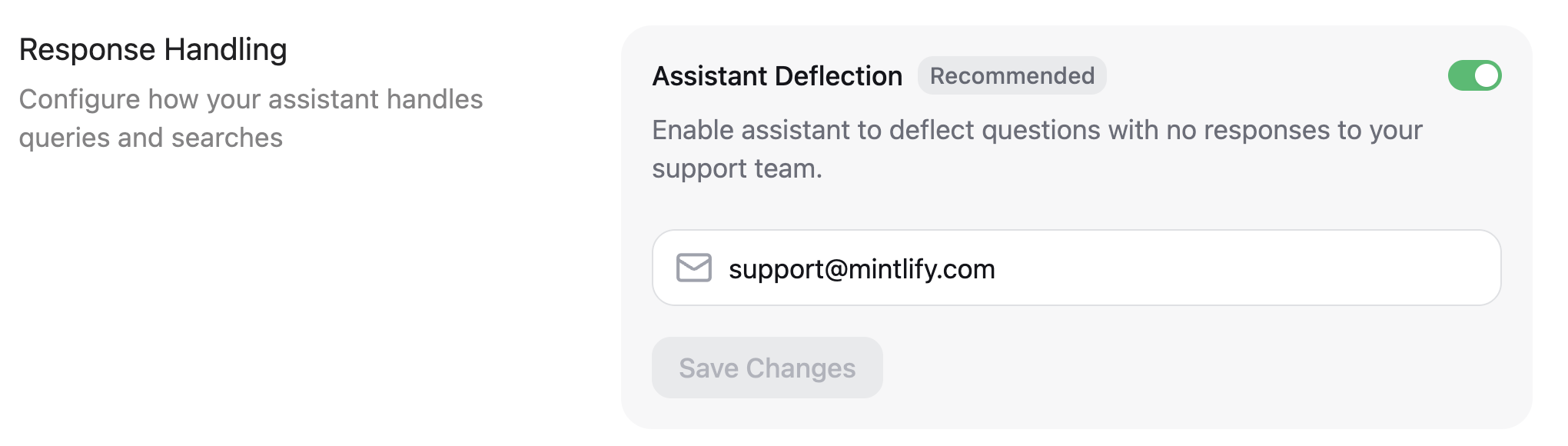
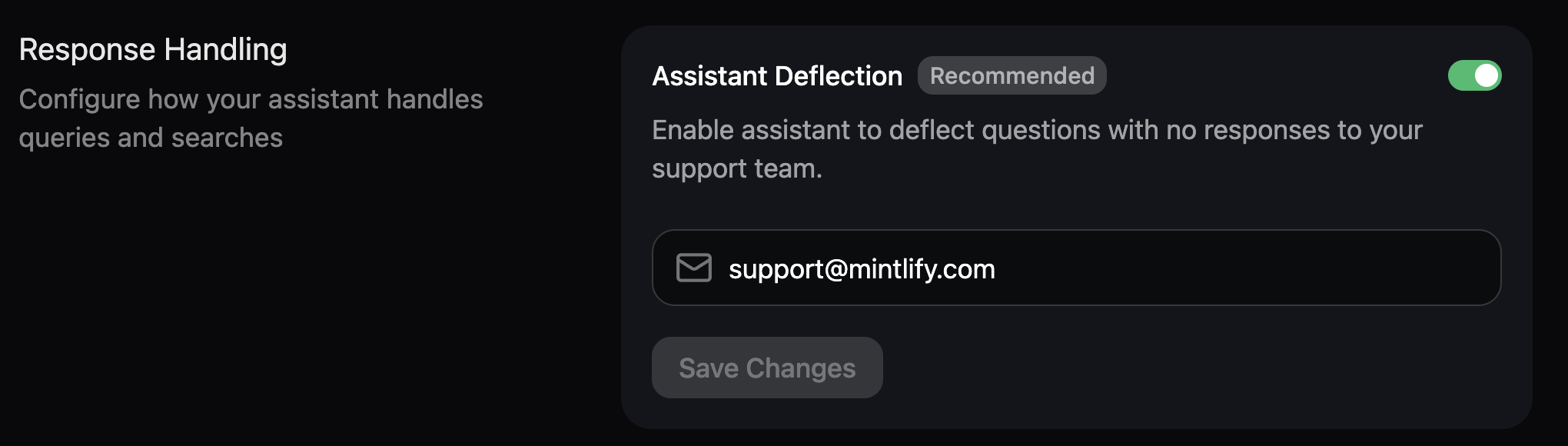
在响应处理部分，启用 AI 助手将未解答的问题转交给你的支持团队。指定一个电子邮箱地址，当 AI 助手无法回答用户的问题时会提供给用户。

<Frame>
  <img src="https://mintcdn.com/anotherhorizon/xUu33r2fE-ckWJ-B/images/assistant/deflection-light.png?fit=max&auto=format&n=xUu33r2fE-ckWJ-B&q=85&s=a6afa1bbcf30c1cb495a903c53f27722" alt="控制台中的 AI 助手分流面板。助手分流已开启，且将 support@mintlify.com 设为分流邮箱。" className="block dark:hidden" width="2040" height="580" data-path="images/assistant/deflection-light.png" />

  <img src="https://mintcdn.com/anotherhorizon/xUu33r2fE-ckWJ-B/images/assistant/deflection-dark.png?fit=max&auto=format&n=xUu33r2fE-ckWJ-B&q=85&s=2a3929e9c2292bea340e8fd6888bb7d1" alt="控制台中的 AI 助手分流面板。助手分流已开启，且将 support@mintlify.com 设为分流邮箱。" className="hidden dark:block" width="2040" height="580" data-path="images/assistant/deflection-dark.png" />
</Frame>

<div id="search-sites">
  ### 搜索站点
</div>

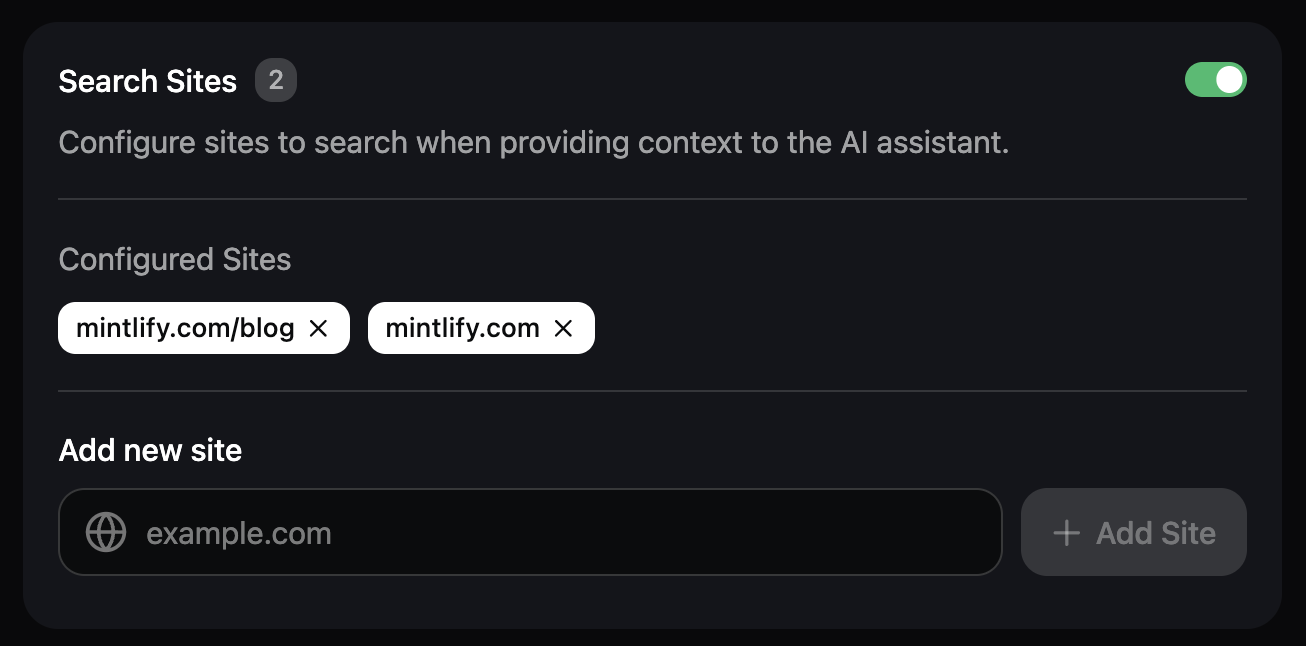
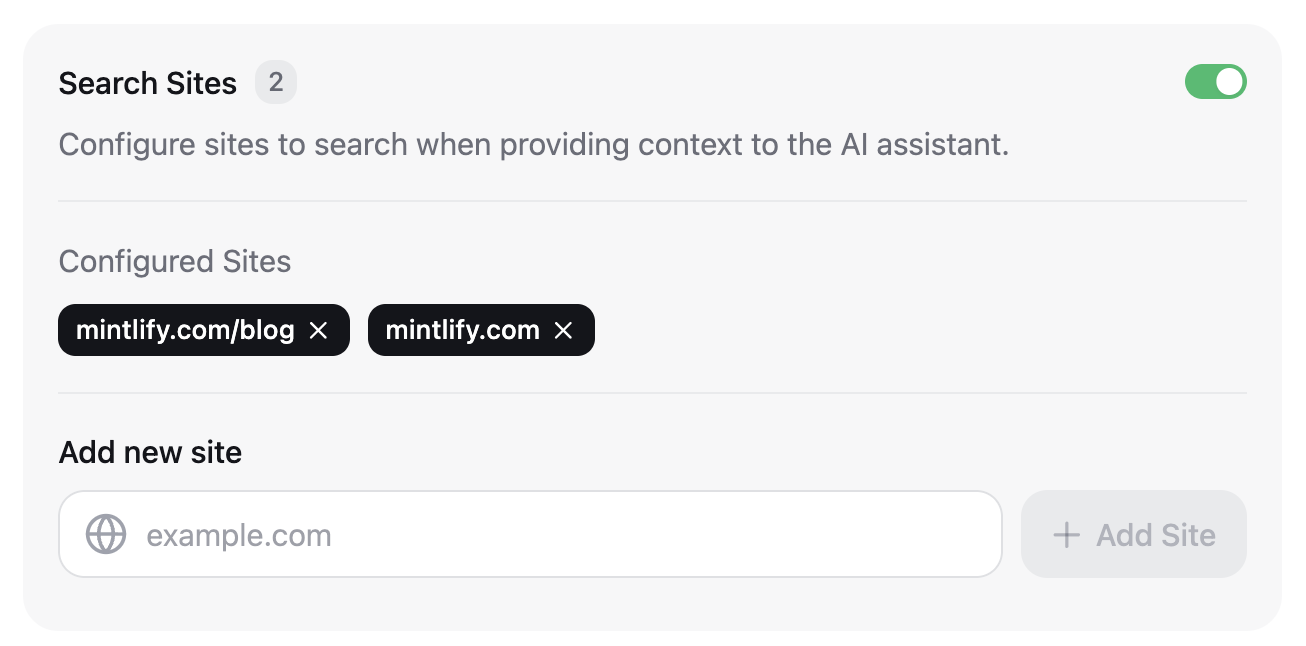
在响应处理部分中，配置 AI 助手在回答问题时可以搜索的站点，以获取更多上下文。

* 站点必须是公开可访问的。
* 依赖 JavaScript 才能加载内容的站点不受支持。
<Frame>
  <img src="https://mintcdn.com/anotherhorizon/xUu33r2fE-ckWJ-B/images/assistant/search-sites-light.png?fit=max&auto=format&n=xUu33r2fE-ckWJ-B&q=85&s=8dc0fd2d218f26b377ac3e87e24bf6bf" alt="控制台中的 AI 助手搜索站点面板。AI 助手被配置为搜索 mintlify.com 和 mintlify.com/blog 这两个域名。" className="block dark:hidden" width="1306" height="646" data-path="images/assistant/search-sites-light.png" />

  <img src="https://mintcdn.com/anotherhorizon/xUu33r2fE-ckWJ-B/images/assistant/search-sites-dark.png?fit=max&auto=format&n=xUu33r2fE-ckWJ-B&q=85&s=9a0550c82662b661b5867c65a4dfec05" alt="控制台中的 AI 助手搜索站点面板。AI 助手被配置为搜索 mintlify.com 和 mintlify.com/blog 这两个域名。" className="hidden dark:block" width="1306" height="646" data-path="images/assistant/search-sites-dark.png" />
</Frame>

使用以下过滤语法，可以更精细地控制 AI 助手可以搜索的内容：

* **域级过滤**
  * `example.com`：仅搜索 `example.com` 这个域名
  * `docs.example.com`：仅搜索 `docs.example.com` 这个子域
  * `*.example.com`：搜索 `example.com` 的所有子域
* **路径级过滤**
  * `docs.example.com/api`：搜索 `/api` 子路径下的所有页面
* **多个匹配模式**
  * 添加多个条目，以针对站点的不同部分

<div id="add-sample-questions">
  ### 添加示例问题
</div>

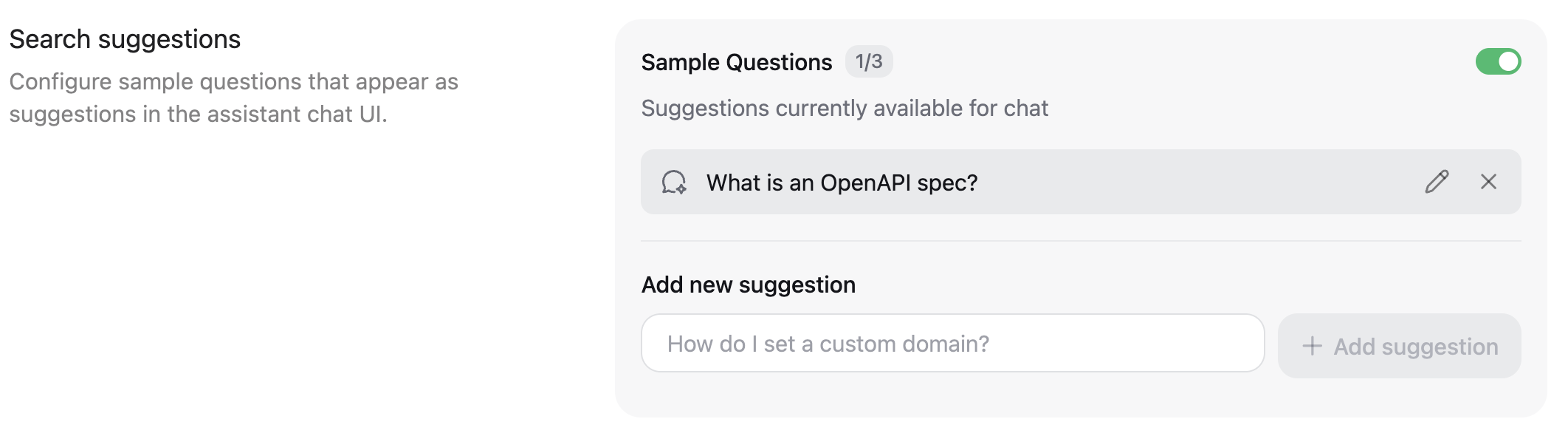
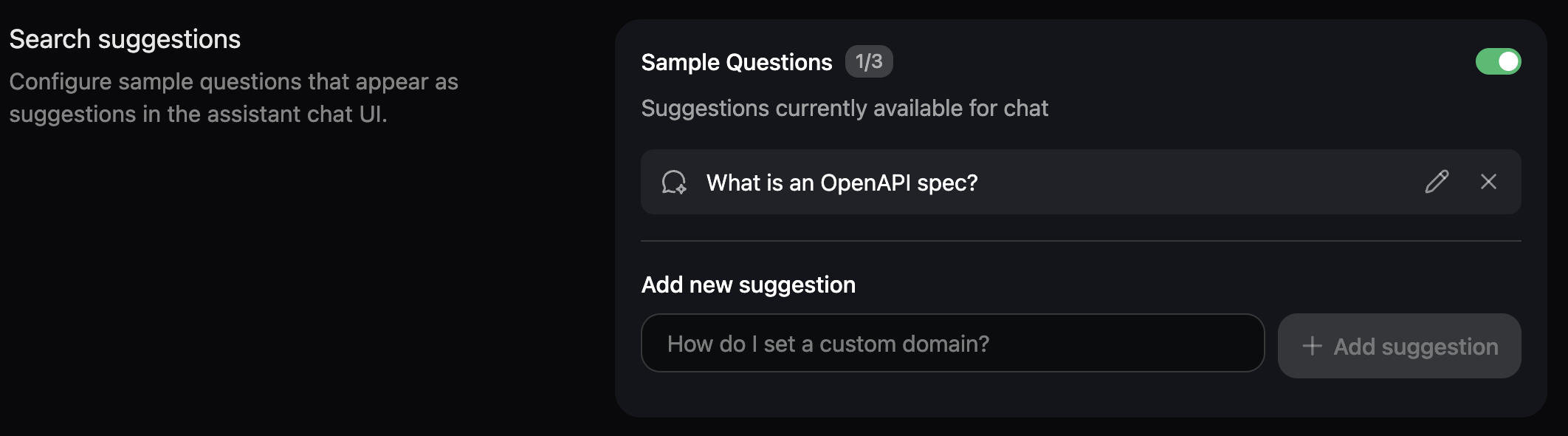
通过添加示例问题，帮助用户借助 AI 助手开始提问。在“搜索建议”部分，最多可添加三个示例问题。

<Frame>
  <img src="https://mintcdn.com/anotherhorizon/xUu33r2fE-ckWJ-B/images/assistant/search-suggestions-light.png?fit=max&auto=format&n=xUu33r2fE-ckWJ-B&q=85&s=317af56f91fd88679df12dbb2d8e20da" alt="控制台中的搜索建议面板。已将“What is an OpenAPI spec?”配置为示例问题。" className="block dark:hidden" width="2124" height="590" data-path="images/assistant/search-suggestions-light.png" />

  <img src="https://mintcdn.com/anotherhorizon/xUu33r2fE-ckWJ-B/images/assistant/search-suggestions-dark.png?fit=max&auto=format&n=xUu33r2fE-ckWJ-B&q=85&s=97300456b7f7500eb2c7241b7e1b8025" alt="控制台中的搜索建议面板。已将“What is an OpenAPI spec?”配置为示例问题。" className="hidden dark:block" width="2124" height="590" data-path="images/assistant/search-suggestions-dark.png" />
</Frame>

<div id="set-a-spend-limit">
  ### 设定支出上限
</div>

设定支出上限，以控制在用完消息配额后的处理方式。默认情况下，即使达到消息配额，AI 助手仍会继续回答用户问题，从而产生超额费用。

当你达到支出上限时，AI 助手将被禁用，直到你的消息配额重置。

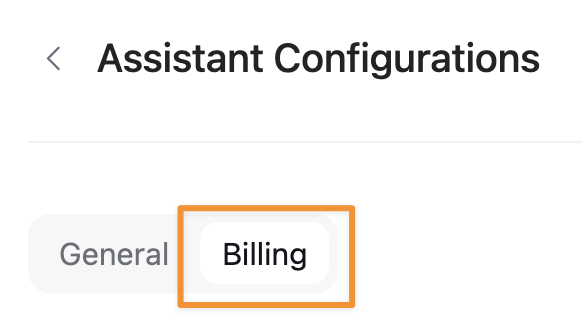
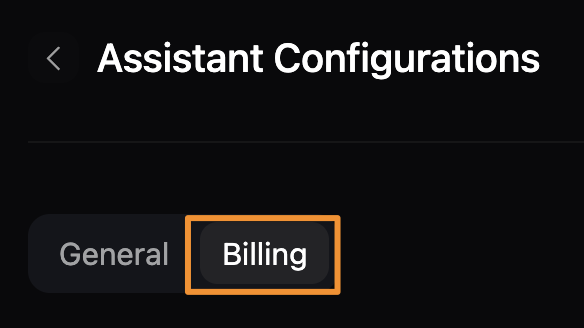
1. 选择 **Billing** 标签页。

<Frame>
  <img src="https://mintcdn.com/anotherhorizon/J4BH3chw5X4BWXwI/images/assistant/billing-light.png?fit=max&auto=format&n=J4BH3chw5X4BWXwI&q=85&s=9992b0e06b6a0e6d3969ecab5388d3ac" alt="Assistant Configurations 页面中的 Billing 标签页。Billing 标签页以橙色矩形突出显示。" className="block dark:hidden" style={{ width: '268px', height: 'auto' }} width="582" height="328" data-path="images/assistant/billing-light.png" />

  <img src="https://mintcdn.com/anotherhorizon/J4BH3chw5X4BWXwI/images/assistant/billing-dark.png?fit=max&auto=format&n=J4BH3chw5X4BWXwI&q=85&s=3e9ed27c729bad9c5166ea1e0345cf94" alt="Assistant Configurations 页面中的 Billing 标签页。Billing 标签页以橙色矩形突出显示。" className="hidden dark:block" style={{ width: '268px', height: 'auto' }} width="584" height="328" data-path="images/assistant/billing-dark.png" />
</Frame>

2. 为超出配额的 AI 助手消息设定支出上限。
3. 设置用量提醒，在达到支出上限的一定百分比时通过电子邮件接收通知。

<div id="use-the-assistant">
  ## 使用 AI 助手
</div>

用户有多种方式可以与 AI 助手开始对话。每种方式都会在文档页面右侧打开一个聊天面板。用户可以提出任何问题，AI 助手会在你的文档中搜索答案。如果找不到相关信息，AI 助手会告知无法回答该问题。

将 AI 助手作为机器人添加到你的 [Slack 工作区](/zh/ai/slack-bot) 或 [Discord 服务器](/zh/ai/discord)，这样你的社区成员就可以在自己偏好的平台上直接提问，而无需离开该平台。

<div id="ui-placement">
  ### UI 放置方式
</div>

启用 AI 助手后，它会出现在两个位置：搜索栏旁边的按钮，以及页面底部的工具栏。

<Columns cols={2}>
  <Frame caption="搜索栏旁边的 AI 助手按钮。">
    <img
      src="https://mintcdn.com/anotherhorizon/J4BH3chw5X4BWXwI/images/assistant/assistant-button-light.png?fit=max&auto=format&n=J4BH3chw5X4BWXwI&q=85&s=5ef8e1701d976882f1bbece70ed6a904"
      className="block dark:hidden"
      style={{
width: '268px',
height: 'auto',
}}
      alt="亮色模式下的搜索栏和 AI 助手按钮。"
      width="1806"
      height="322"
      data-path="images/assistant/assistant-button-light.png"
    />

    <img
      src="https://mintcdn.com/anotherhorizon/J4BH3chw5X4BWXwI/images/assistant/assistant-button-dark.png?fit=max&auto=format&n=J4BH3chw5X4BWXwI&q=85&s=3b5755834af2237b1d38fbf09a3bbcc4"
      className="hidden dark:block"
      style={{
width: '268px',
height: 'auto',
}}
      alt="暗色模式下的搜索栏和 AI 助手按钮。"
      width="1806"
      height="324"
      data-path="images/assistant/assistant-button-dark.png"
    />
  </Frame>

  <Frame caption="页面底部的 AI 助手按钮。">
    <img
      src="https://mintcdn.com/anotherhorizon/J4BH3chw5X4BWXwI/images/assistant/assistant-bar-light.png?fit=max&auto=format&n=J4BH3chw5X4BWXwI&q=85&s=12cce8c9aaddf7ed4546051e8f7d3f94"
      className="block dark:hidden"
      style={{
width: '268px',
height: 'auto',
}}
      alt="亮色模式下的 AI 助手工具栏。"
      width="656"
      height="112"
      data-path="images/assistant/assistant-bar-light.png"
    />

    <img
      src="https://mintcdn.com/anotherhorizon/J4BH3chw5X4BWXwI/images/assistant/assistant-bar-dark.png?fit=max&auto=format&n=J4BH3chw5X4BWXwI&q=85&s=e49b646d22717a89574f028d31a008c5"
      className="hidden dark:block"
      style={{
width: '268px',
height: 'auto',
}}
      alt="暗色模式下的 AI 助手工具栏。"
      width="656"
      height="112"
      data-path="images/assistant/assistant-bar-dark.png"
    />
  </Frame>
</Columns>

<div id="keyboard-shortcut">
  ### 键盘快捷键
</div>

在 macOS 上使用快捷键 <kbd>Command</kbd> + <kbd>I</kbd>，在 Windows 上使用 <kbd>Ctrl</kbd> + <kbd>I</kbd> 打开 AI 助手对话面板。

<div id="highlight-text">
  ### 高亮文本
</div>

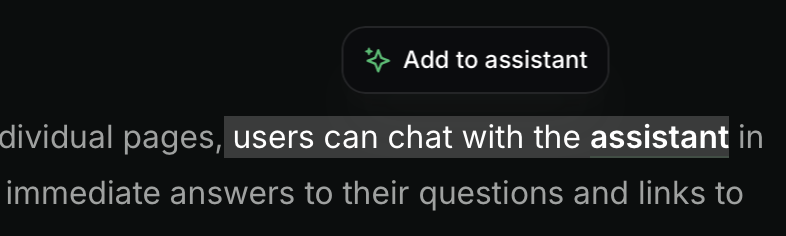
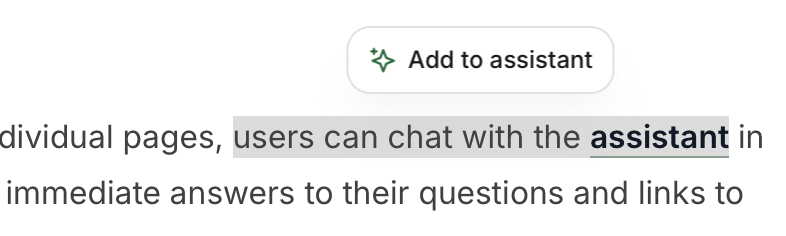
在页面上选中一段文本，然后点击弹出的 **Add to assistant** 按钮，打开 AI 助手聊天面板，并将选中文本添加为 context。你可以将多个文本片段或代码块添加到 AI 助手的 context 中。
<Frame>
  <img src="https://mintcdn.com/anotherhorizon/xUu33r2fE-ckWJ-B/images/assistant/highlight-light.png?fit=max&auto=format&n=xUu33r2fE-ckWJ-B&q=85&s=9909b7150320da4723e7a40a4d00bb64" alt="浅色模式下，高亮文本上方的 Add to assistant 按钮。" className="block dark:hidden" width="786" height="236" data-path="images/assistant/highlight-light.png" />

  <img src="https://mintcdn.com/anotherhorizon/xUu33r2fE-ckWJ-B/images/assistant/highlight-dark.png?fit=max&auto=format&n=xUu33r2fE-ckWJ-B&q=85&s=72b3bd81974faf9e66d3902021fad587" alt="深色模式下，高亮文本上方的 Add to assistant 按钮。" className="hidden dark:block" width="786" height="236" data-path="images/assistant/highlight-dark.png" />
</Frame>

<div id="code-blocks">
  ### 代码块
</div>

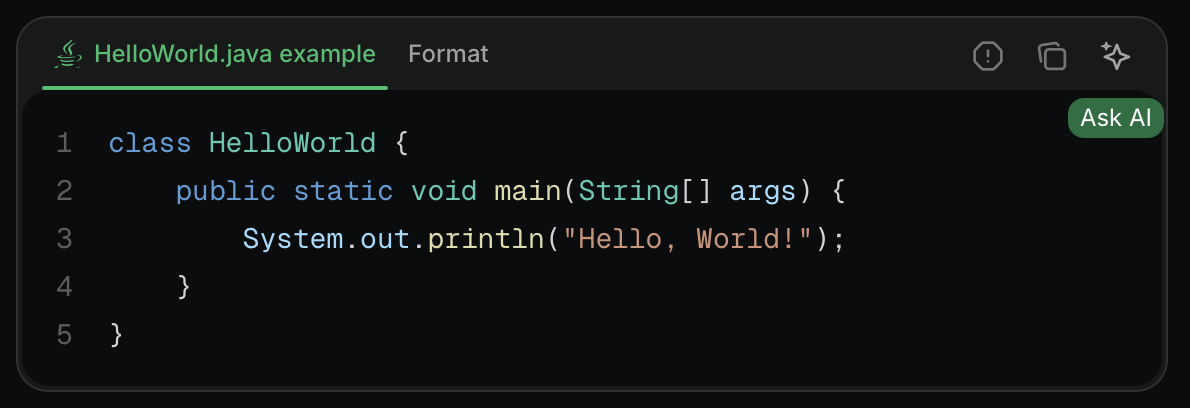
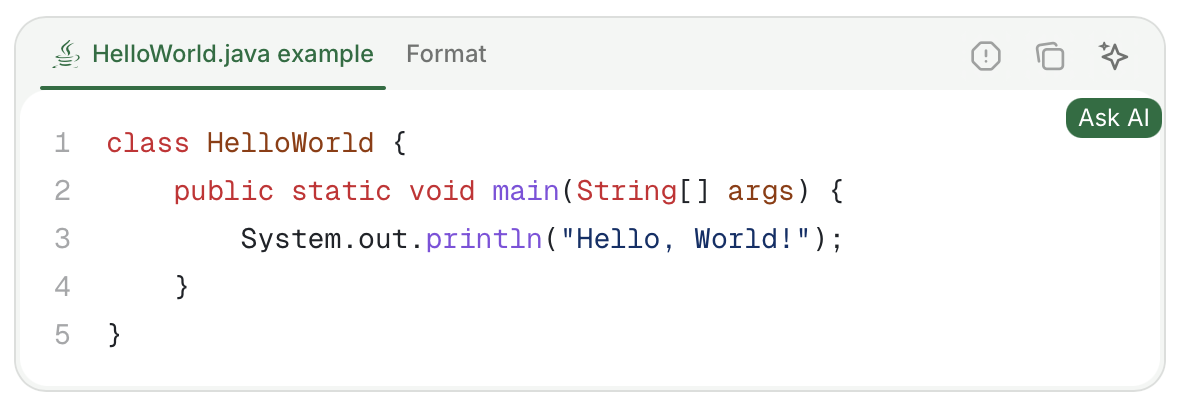
点击代码块中的 **Ask AI** 按钮，打开 AI 助手聊天面板，并将该代码块作为上下文添加。你可以将多个代码块或文本片段添加到 AI 助手的上下文中。
<Frame>
  <img src="https://mintcdn.com/anotherhorizon/xUu33r2fE-ckWJ-B/images/assistant/code-block-light.png?fit=max&auto=format&n=xUu33r2fE-ckWJ-B&q=85&s=e3ef11be0b0ea024897bb93c14da92ef" alt="浅色模式下代码块中的 Ask AI 按钮。" className="block dark:hidden" width="1190" height="408" data-path="images/assistant/code-block-light.png" />

  <img src="https://mintcdn.com/anotherhorizon/xUu33r2fE-ckWJ-B/images/assistant/code-block-dark.png?fit=max&auto=format&n=xUu33r2fE-ckWJ-B&q=85&s=5fe108a7875f5069f0a52d7162a7d6f2" alt="深色模式下代码块中的 Ask AI 按钮。" className="hidden dark:block" width="1190" height="408" data-path="images/assistant/code-block-dark.png" />
</Frame>

<div id="urls">
  ### URL
</div>

在 URL 末尾追加 `?assistant=open`，即可在页面加载时打开 AI 助手。例如：[https://mintlify.com/docs?assistant=open](https://mintlify.com/docs?assistant=open)。

<div id="make-content-ai-ingestible">
  ## 让内容便于 AI 读取与理解
</div>

合理组织文档结构，以帮助 AI 助手提供准确、相关的答案。清晰的组织和完整的上下文信息既有利于人工读者，也能提升 AI 的理解。

<Card title="结构与组织">
  * 使用语义化标记。
  * 为各个部分撰写有描述性的标题。
  * 建立合理的信息层级结构。
  * 在整个文档中使用一致的格式。
  * 在页面 frontmatter 中包含完整的 metadata。
  * 使用语义化标记。
</Card>

<Card title="上下文">
  * 在术语和缩写首次出现时进行明确定义。
  * 提供足够的功能和流程概念性介绍内容。
  * 包含示例和使用场景。
  * 交叉引用相关主题。
  * 添加带有额外 context 的[隐藏页面](/zh/organize/hidden-pages)，这些内容用户不需要查看，但 AI 助手可以引用。
</Card>

<div id="export-and-analyze-queries">
  ## 导出并分析查询
</div>

从控制台中查看和导出查询，以了解人们如何与你的文档交互，并识别改进机会。通过分析查询，你可以从以下方面改进文档：

* 识别内容空白，即高频查询未获得充分解答的地方。
* 从查询中的主题和模式中发现用户行为模式和常见信息需求。
* 为高流量页面的准确性和质量改进设定优先级。

你可以在[控制台](https://dashboard.mintlify.com/products/assistant)中查看查询，但为了获得更深入的洞察，我们建议导出包含查询、回答和来源的 `CSV` 文件，然后使用你常用的 AI 工具进行分析。

1. 在控制台中访问 [AI 助手页面](https://dashboard.mintlify.com/products/assistant)。
2. 点击 **Chat history**。
3. 点击 **Export to CSV**。
4. 使用你常用的工具分析导出的数据。

<Card title="示例分析提示">
  * 概括查询中最常见的主题。
  * 列出没有引用任何来源的查询。
  * 概括查询中最常见的主题。
</Card>

<div id="assistant-insights">
  ## AI 助手洞察
</div>

通过“类别”和“聊天记录”两个视图，使用 AI 助手洞察来了解用户如何与您的文档交互。

<div id="categories">
  ### 类别
</div>

“Categories” 标签页使用 LLM 自动为会话归类。类别会显示话题或主题的摘要、上一次有人就该类别提问的时间，以及一段时间内关于该类别累计提出了多少个问题。

使用类别来识别常见话题、用户需求和行为模式，以及文档可能需要扩展或澄清的部分。

点击某个类别行可将其展开，并查看归在该类别下的相关会话。展开视图会显示：

* 与该类别相关的会话列表。
* 每个会话中的第一条用户消息。
* 每个会话线程中的消息数量。

点击单个会话可查看完整的聊天记录，包括用户的问题、AI 助手的回答以及引用的所有来源。

<div id="chat-history">
  ### 聊天记录
</div>

“聊天记录”标签页按时间顺序显示所有与 AI 助手的对话记录。点击任意消息即可查看完整对话，包括用户的问题、AI 助手的回答以及引用的所有来源。

<div id="troubleshooting">
  ## 故障排查
</div>

<Accordion title="看不到 AI 助手聊天栏">
  如果在特定浏览器中看不到 AI 助手的界面，您可能需要向 [EasyList](https://easylist.to) 提交误判报告。使用 EasyList Cookies List 的浏览器（如 Brave 和 Comet）有时会屏蔽 AI 助手或其他界面元素。EasyList Cookies List 包含一条按域名生效的规则，会在特定域名上隐藏固定元素以拦截 Cookie 横幅，而该规则会误伤合法的界面组件。

  请向 [EasyList](https://github.com/easylist/easylist) 提交误判报告，请求移除该规则。过滤列表更新后，问题将对所有用户一并解决。
</Accordion>