> ## Documentation Index
> Fetch the complete documentation index at: https://wiki.another-horizon.eu/llms.txt
> Use this file to discover all available pages before exploring further.
# Add media
> Upload, organize, and use images and assets in your documentation.
Upload and organize images and other assets with the media manager.
## Access the media manager
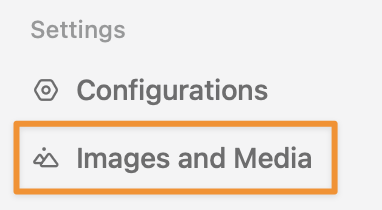
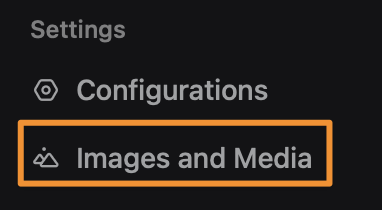
Access the media manager from the bottom of the left panel in the editor.
 ## Upload assets
Upload files by dragging them from your computer into the media manager or click the **Add** button to select files from your computer.
**Supported file types:**
* **Images**: PNG, JPG, JPEG, SVG, GIF, WebP
* **Videos**: MP4, WebM
* **Fonts**: TTF, WOFF, WOFF2
* **Other**: PDF, ICO (favicons)
## Organize assets
Use folders to group related images, separate light and dark mode assets, or organize by feature area.
To create a new folder, click the **Add** button.
### Move assets
Drag and drop assets to move them between folders. File paths update automatically when you move assets.
### Rename assets
To rename an asset, click the **...** button beside the asset name and then click **Rename**. References to renamed assets update automatically.
### Delete assets
To delete an asset, click the **...** button beside the asset name and then click **Delete**.
## Use media in documentation
### Insert images
1. Position your cursor where you want the image to appear.
2. Press / to open the component menu.
3. Select **Image**.
4. Choose the image from the media manager.
### Add alt text
1. Click the **...** button that appears when you hover over the image.
2. Add descriptive alt text in the **Edit Image Attributes** panel.
## Best practices
* **Use descriptive names**: Name files clearly. For example, `api-dashboard-light.png` instead of `img1.png`.
* **Add alt text**: Always provide descriptive alt text for accessibility and SEO.
* **Organize folders**: Group related assets in folders for easier management.
* **Use appropriate formats**: PNG for graphics with transparency, JPG for photos, SVG for icons and logos.
## Upload assets
Upload files by dragging them from your computer into the media manager or click the **Add** button to select files from your computer.
**Supported file types:**
* **Images**: PNG, JPG, JPEG, SVG, GIF, WebP
* **Videos**: MP4, WebM
* **Fonts**: TTF, WOFF, WOFF2
* **Other**: PDF, ICO (favicons)
## Organize assets
Use folders to group related images, separate light and dark mode assets, or organize by feature area.
To create a new folder, click the **Add** button.
### Move assets
Drag and drop assets to move them between folders. File paths update automatically when you move assets.
### Rename assets
To rename an asset, click the **...** button beside the asset name and then click **Rename**. References to renamed assets update automatically.
### Delete assets
To delete an asset, click the **...** button beside the asset name and then click **Delete**.
## Use media in documentation
### Insert images
1. Position your cursor where you want the image to appear.
2. Press / to open the component menu.
3. Select **Image**.
4. Choose the image from the media manager.
### Add alt text
1. Click the **...** button that appears when you hover over the image.
2. Add descriptive alt text in the **Edit Image Attributes** panel.
## Best practices
* **Use descriptive names**: Name files clearly. For example, `api-dashboard-light.png` instead of `img1.png`.
* **Add alt text**: Always provide descriptive alt text for accessibility and SEO.
* **Organize folders**: Group related assets in folders for easier management.
* **Use appropriate formats**: PNG for graphics with transparency, JPG for photos, SVG for icons and logos.