> ## Documentation Index
> Fetch the complete documentation index at: https://wiki.another-horizon.eu/llms.txt
> Use this file to discover all available pages before exploring further.
# Preview deployments
> Get unique preview URLs for pull requests to review changes before merging.
Preview deployments are available on [Pro and Custom plans](https://mintlify.com/pricing?ref=preview-deployments).
Preview deployments let you see how changes to your docs will look before merging to production. Each preview creates a shareable URL that updates automatically as you push new changes.
Preview URLs are publicly viewable by default. Share a preview link with anyone who needs to review your changes.
## Create preview deployments
Preview deployments are created automatically through pull requests or manually from your dashboard.
### Automatic previews
Automatic previews are only created for pull requests targeting your [deployment branch](/guides/git-concepts#deployment-branch).
When you create a pull request, the Mintlify bot automatically adds a link to view the preview deployment in your pull request. The preview updates each time you push new commits to the branch.

 ### Manual previews
You can manually create a preview for any branch.
1. Go to your [dashboard](https://dashboard.mintlify.com/).
2. Select **Previews**.
3. Select **Create custom preview**.
4. Enter the name of the branch you want to preview.
5. Select **Create deployment**.
## Redeploy a preview
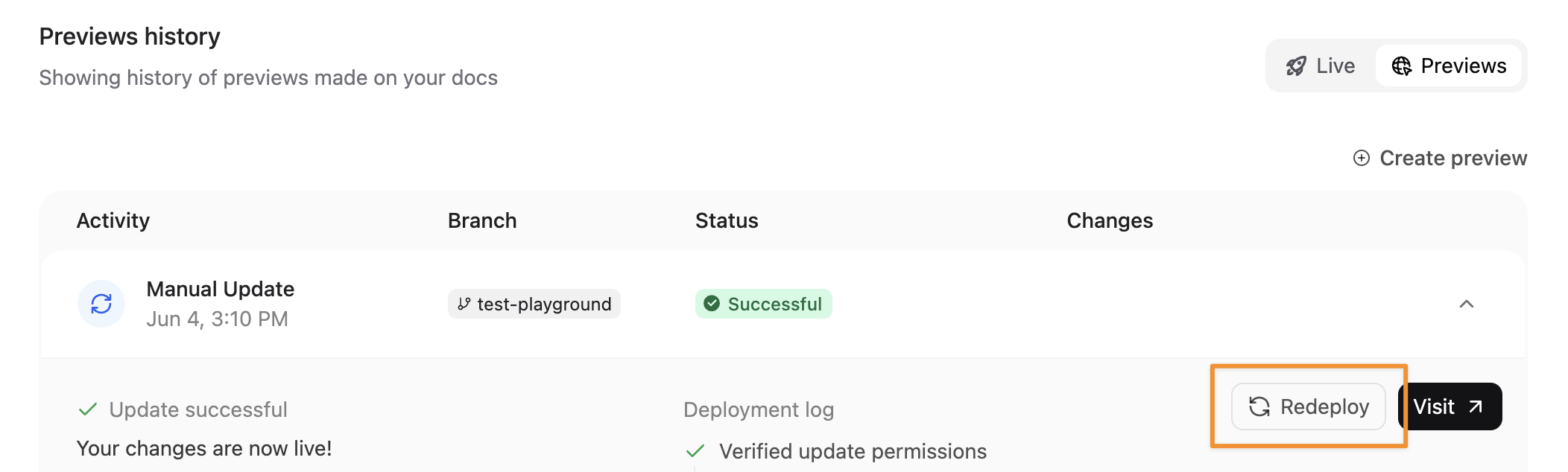
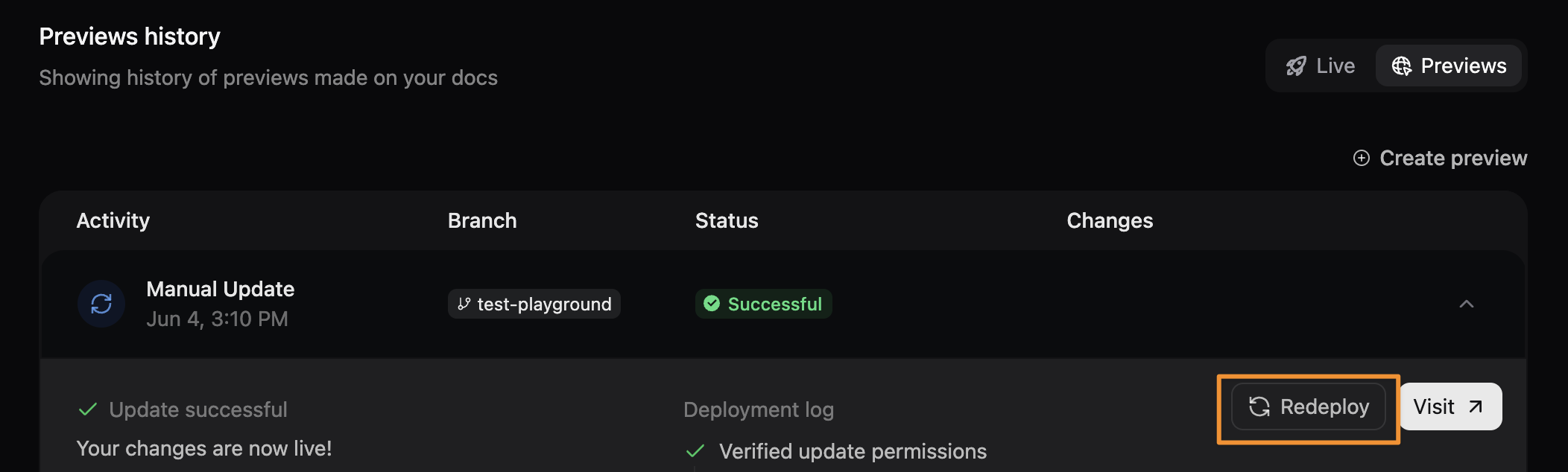
Redeploy a preview to refresh content or retry after a failed deployment.
1. Select the preview from your [dashboard](https://dashboard.mintlify.com/).
2. Select **Redeploy**.
### Manual previews
You can manually create a preview for any branch.
1. Go to your [dashboard](https://dashboard.mintlify.com/).
2. Select **Previews**.
3. Select **Create custom preview**.
4. Enter the name of the branch you want to preview.
5. Select **Create deployment**.
## Redeploy a preview
Redeploy a preview to refresh content or retry after a failed deployment.
1. Select the preview from your [dashboard](https://dashboard.mintlify.com/).
2. Select **Redeploy**.
 ## Preview widget
The preview widget appears on preview deployments to help you navigate and review updated pages. The widget is a floating button in the bottom-right corner of your preview deployment.
## Preview widget
The preview widget appears on preview deployments to help you navigate and review updated pages. The widget is a floating button in the bottom-right corner of your preview deployment.
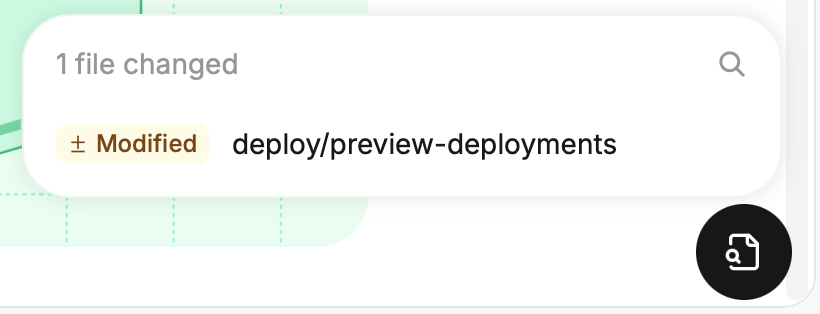
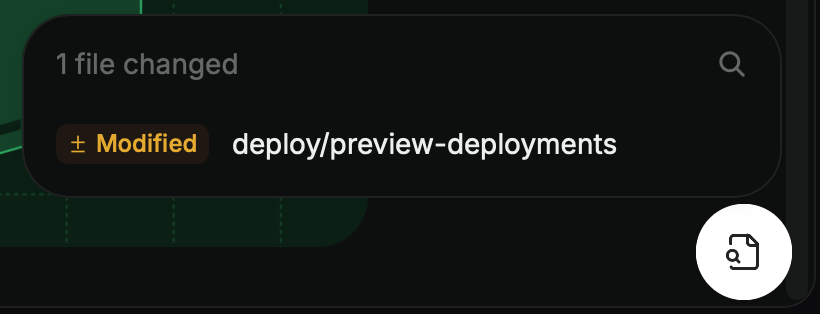 1. Click the widget to show all added, modified, or removed files in the preview.
2. Click a file to view the changes on the corresponding page.
3. Use the search bar to filter the list of changed files.
The widget only appears on preview deployments, not on your live site or local previews.
## Restrict access to preview deployments
By default, preview deployments are publicly accessible to anyone with the URL. You can restrict access to authenticated members of your Mintlify organization.
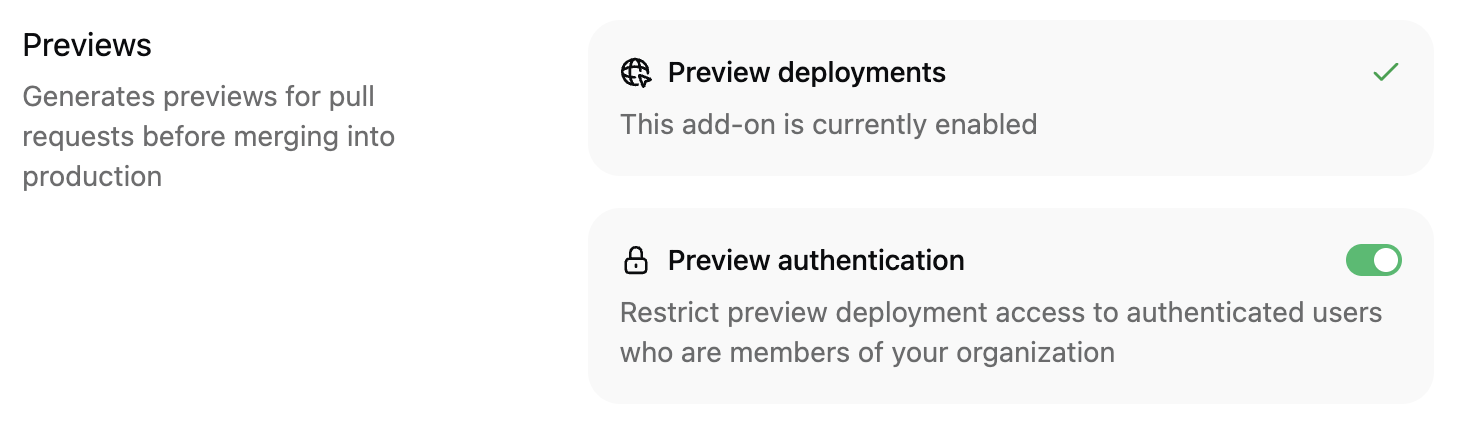
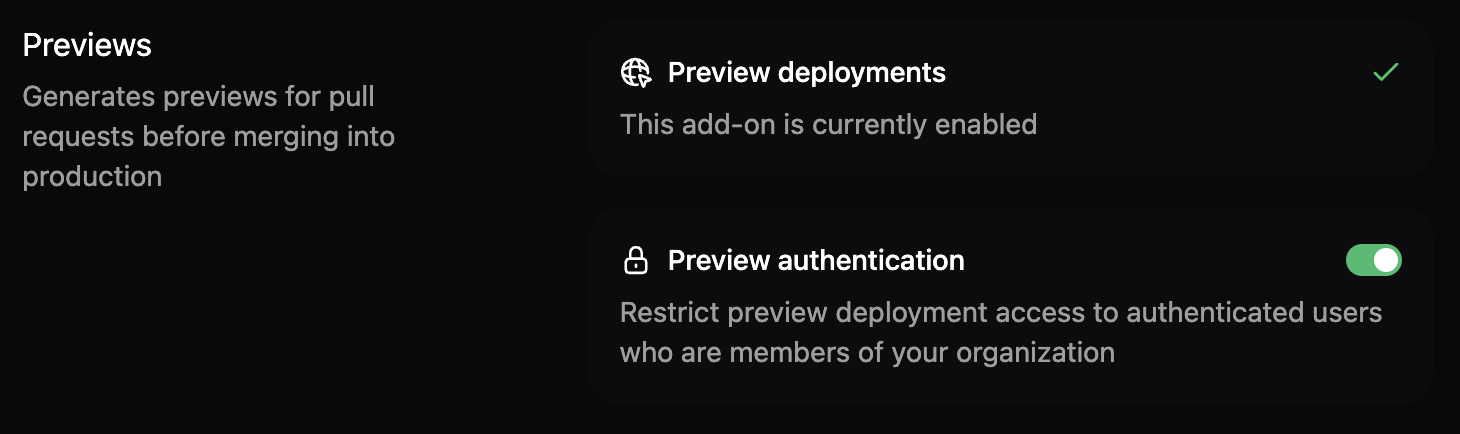
1. Navigate to the **Previews** section in the [Add-ons](https://dashboard.mintlify.com/products/addons) page of your dashboard.
2. Click the **Preview authentication** toggle to enable or disable preview authentication.
1. Click the widget to show all added, modified, or removed files in the preview.
2. Click a file to view the changes on the corresponding page.
3. Use the search bar to filter the list of changed files.
The widget only appears on preview deployments, not on your live site or local previews.
## Restrict access to preview deployments
By default, preview deployments are publicly accessible to anyone with the URL. You can restrict access to authenticated members of your Mintlify organization.
1. Navigate to the **Previews** section in the [Add-ons](https://dashboard.mintlify.com/products/addons) page of your dashboard.
2. Click the **Preview authentication** toggle to enable or disable preview authentication.
 ## Troubleshooting preview deployments
If your preview deployment fails, try these troubleshooting steps.
* **View the build logs**: In your [dashboard](https://dashboard.mintlify.com/), go to **Previews** and click the failed preview. The deployment logs show errors that caused failures.
* **Check your configuration**:
* Invalid `docs.json` syntax
* Missing or incorrect file paths referenced in your navigation
* Invalid frontmatter in MDX files
* Broken image links or missing image files
* **Validate locally**: Run `mint dev` locally to catch build errors before pushing to the repository.
* **Check recent changes**: Review the most recent commits in your branch to identify what changes caused the build to fail.
## Troubleshooting preview deployments
If your preview deployment fails, try these troubleshooting steps.
* **View the build logs**: In your [dashboard](https://dashboard.mintlify.com/), go to **Previews** and click the failed preview. The deployment logs show errors that caused failures.
* **Check your configuration**:
* Invalid `docs.json` syntax
* Missing or incorrect file paths referenced in your navigation
* Invalid frontmatter in MDX files
* Broken image links or missing image files
* **Validate locally**: Run `mint dev` locally to catch build errors before pushing to the repository.
* **Check recent changes**: Review the most recent commits in your branch to identify what changes caused the build to fail.