> ## Documentation Index
> Fetch the complete documentation index at: https://wiki.another-horizon.eu/llms.txt
> Use this file to discover all available pages before exploring further.
# Discord bot
> Add a bot to your Discord server that answers questions based on your documentation.
Discord integrations are available on [Pro and Custom plans](https://mintlify.com/pricing?ref=discord) with access to the assistant.
The Discord bot supports your community with real-time answers from your documentation. The bot uses the Mintlify assistant to search your docs and provide accurate, cited responses, so it is always up-to-date.
The Discord bot only works in public channels. It replies to `@` mentions or to all messages in a specific channel.
Each message sent by the Discord bot counts toward your assistant message usage.
## Add the Discord bot to your server
You must have the "Manage Server" permission in Discord to add the bot.
1. Navigate to the [Integrations](https://dashboard.mintlify.com/products/assistant/settings/integrations) tab of the **Assistant Configurations** page in your dashboard.
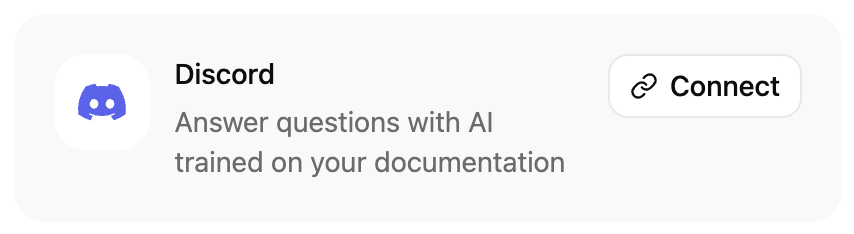
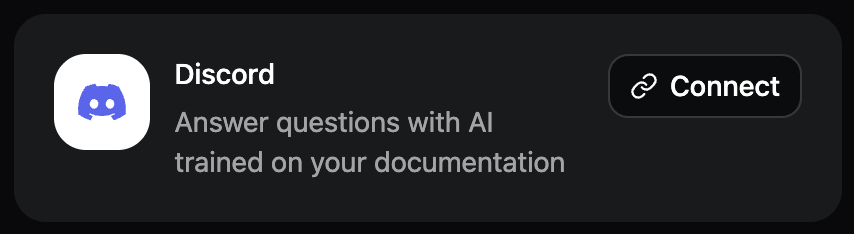
2. In the Discord card, click **Connect**. This opens Discord.
 3. In Discord, select the server you want to add the bot to.
4. Authorize the bot to access your server.
5. Mention the bot to add it to a channel. The bot's default name is `@Mintlify Bot`.
## Create an `#ask-ai` channel
To help your community quickly get answers to their questions, the bot can reply to every message in a channel that you choose. By default, the bot replies to every message in channels named `#ask-ai`. Create an `#ask-ai` channel and let your community know that the bot will reply to messages in that channel.
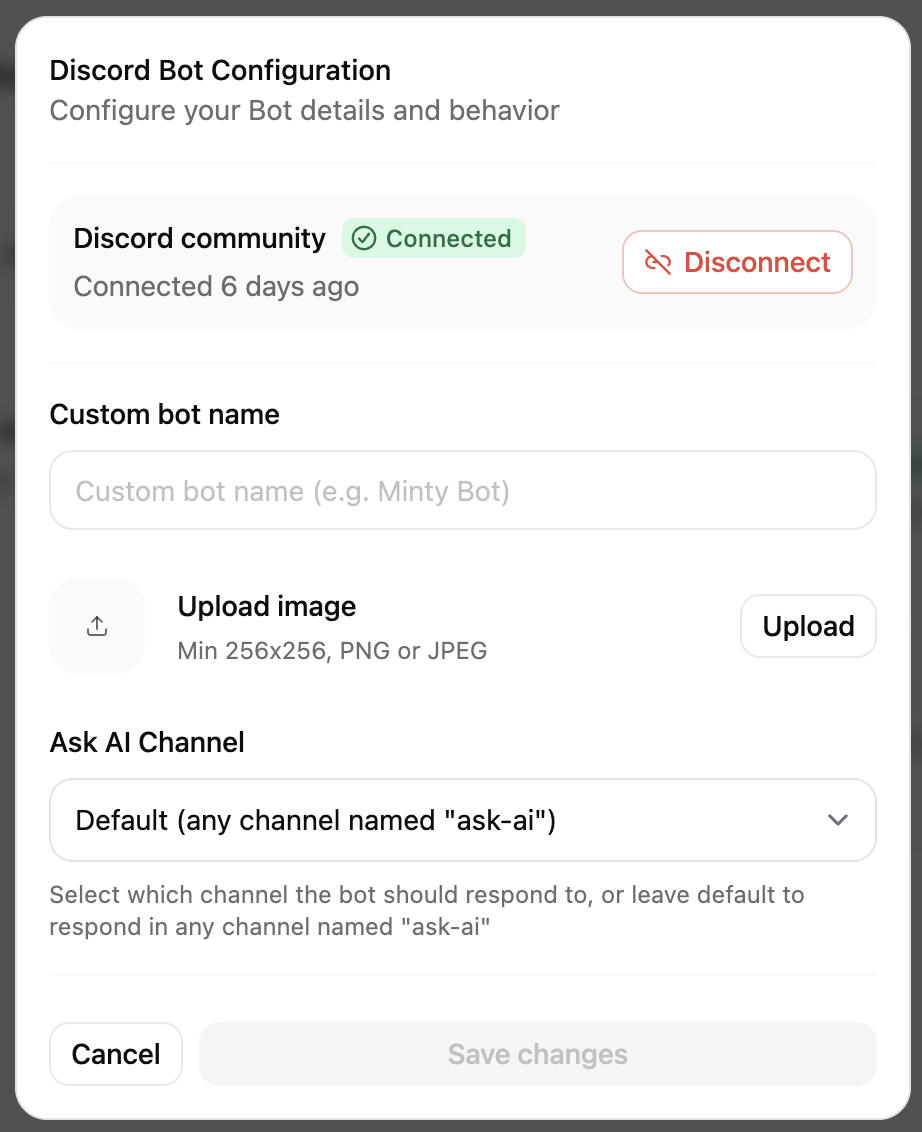
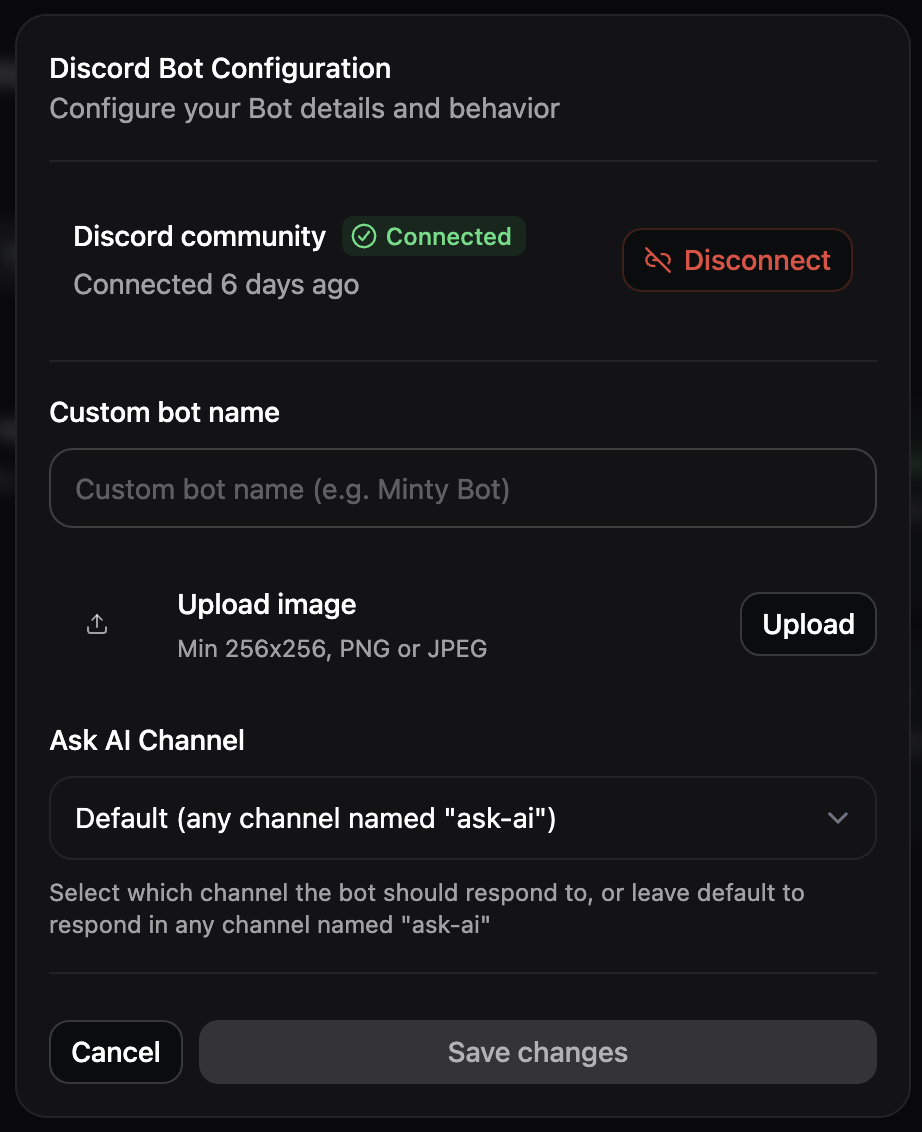
If you want the bot to reply to messages in a different channel, select a channel in the Discord bot [configuration menu](https://dashboard.mintlify.com/products/assistant/settings/integrations).
3. In Discord, select the server you want to add the bot to.
4. Authorize the bot to access your server.
5. Mention the bot to add it to a channel. The bot's default name is `@Mintlify Bot`.
## Create an `#ask-ai` channel
To help your community quickly get answers to their questions, the bot can reply to every message in a channel that you choose. By default, the bot replies to every message in channels named `#ask-ai`. Create an `#ask-ai` channel and let your community know that the bot will reply to messages in that channel.
If you want the bot to reply to messages in a different channel, select a channel in the Discord bot [configuration menu](https://dashboard.mintlify.com/products/assistant/settings/integrations).
 See [Starting Your First Discord Server](https://discord.com/blog/starting-your-first-discord-server) on the Discord blog for more information on creating a channel.
## Manage the Discord bot
After you add the Discord bot to your server, you can manage or remove the bot from the [Integrations](https://dashboard.mintlify.com/products/assistant/settings/integrations) tab in your dashboard.
In the Discord bot configuration menu, customize the bot by changing its avatar or name, and choose which channel it automatically replies to all messages in.
See [Starting Your First Discord Server](https://discord.com/blog/starting-your-first-discord-server) on the Discord blog for more information on creating a channel.
## Manage the Discord bot
After you add the Discord bot to your server, you can manage or remove the bot from the [Integrations](https://dashboard.mintlify.com/products/assistant/settings/integrations) tab in your dashboard.
In the Discord bot configuration menu, customize the bot by changing its avatar or name, and choose which channel it automatically replies to all messages in.